PCMate Free EXE Lock
Identify one personal EXE, test a new launch after locking it, then unlock it and save current recovery information.
Open this application guide →PCMate Free System Care · Version 0.13.1
Choose one everyday maintenance job and follow it from selection to a checked result. PCMate keeps file cleanup, startup changes and encrypted copies in separate workspaces, so you can see which files or settings each task concerns.
100% free. No registration, subscription or activation.
Windows 10 & 11 · 64-bit
PCMate · Custom Clean → Cleanup Results
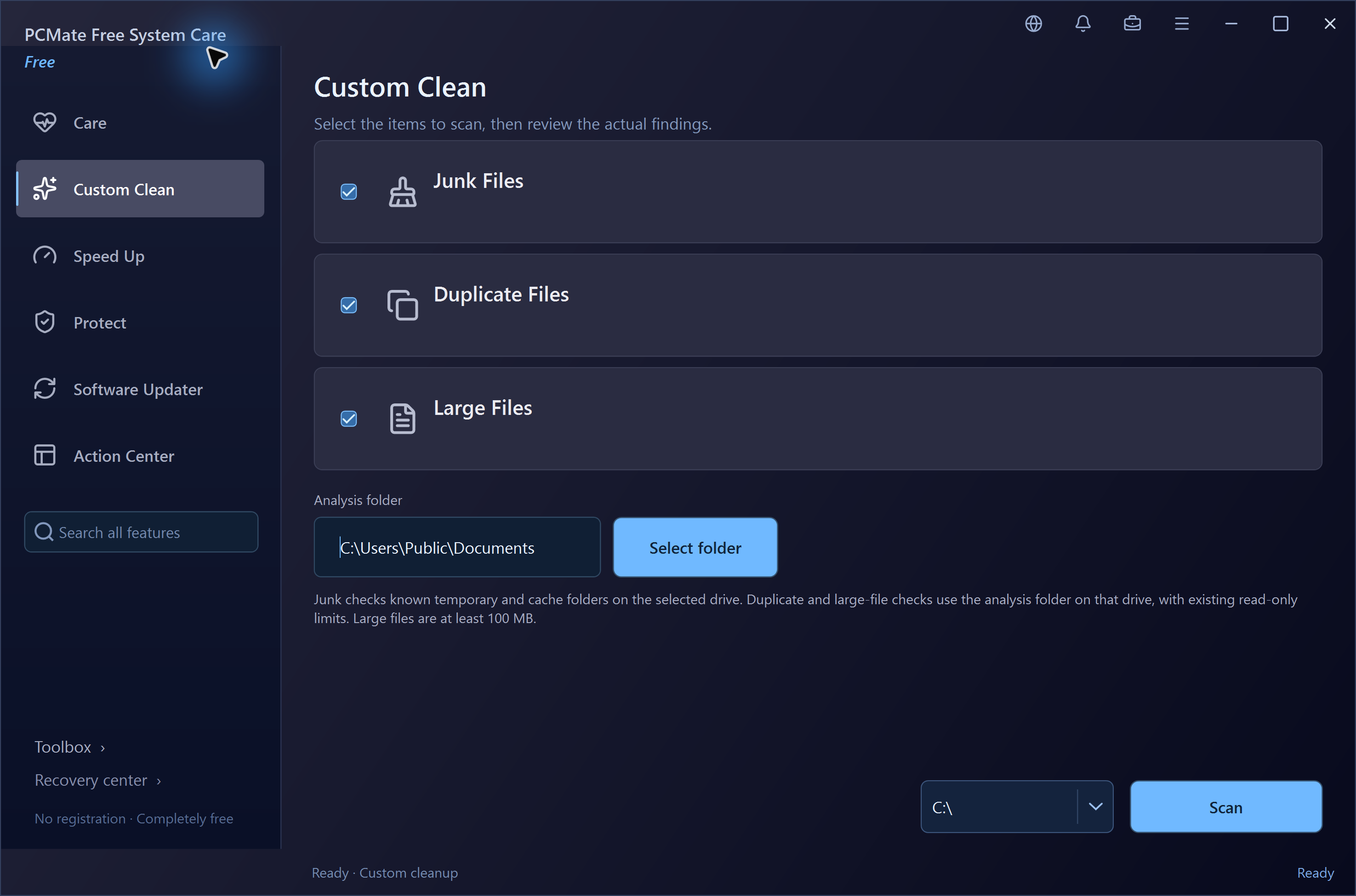
Start with a recognizable cache or temporary-file category. PCMate shows the eligible file candidates and their paths; a large number or unfamiliar filename alone does not establish that an item is disposable.
Open Custom Clean and select only the supported categories relevant to this task. If you use a Care scan instead, choose Manual mode for explicit check selection. AI mode chooses scope using local rules; it does not replace reviewing the findings.
After scanning, compare category, full path and size. Open a location or export the report when you need a closer look. Read skipped-item explanations and leave files you cannot identify unselected. A scan does not authorize arbitrary cleanup elsewhere on the disk.
Move the eligible selected items to the cleanup recovery area. PCMate checks supported scope and file identity again before acting. Return to the report to see which items completed and which were skipped rather than treating the initial candidate count as the final result.
Open Cleanup Recovery Center to inspect the batch. Restore selected supported files if needed and review path or conflict messages. Moving files into this area keeps a recovery copy on disk; permanent removal of its own copies is a separate, explicit decision.
PCMate · Speed Up → Startup Manager
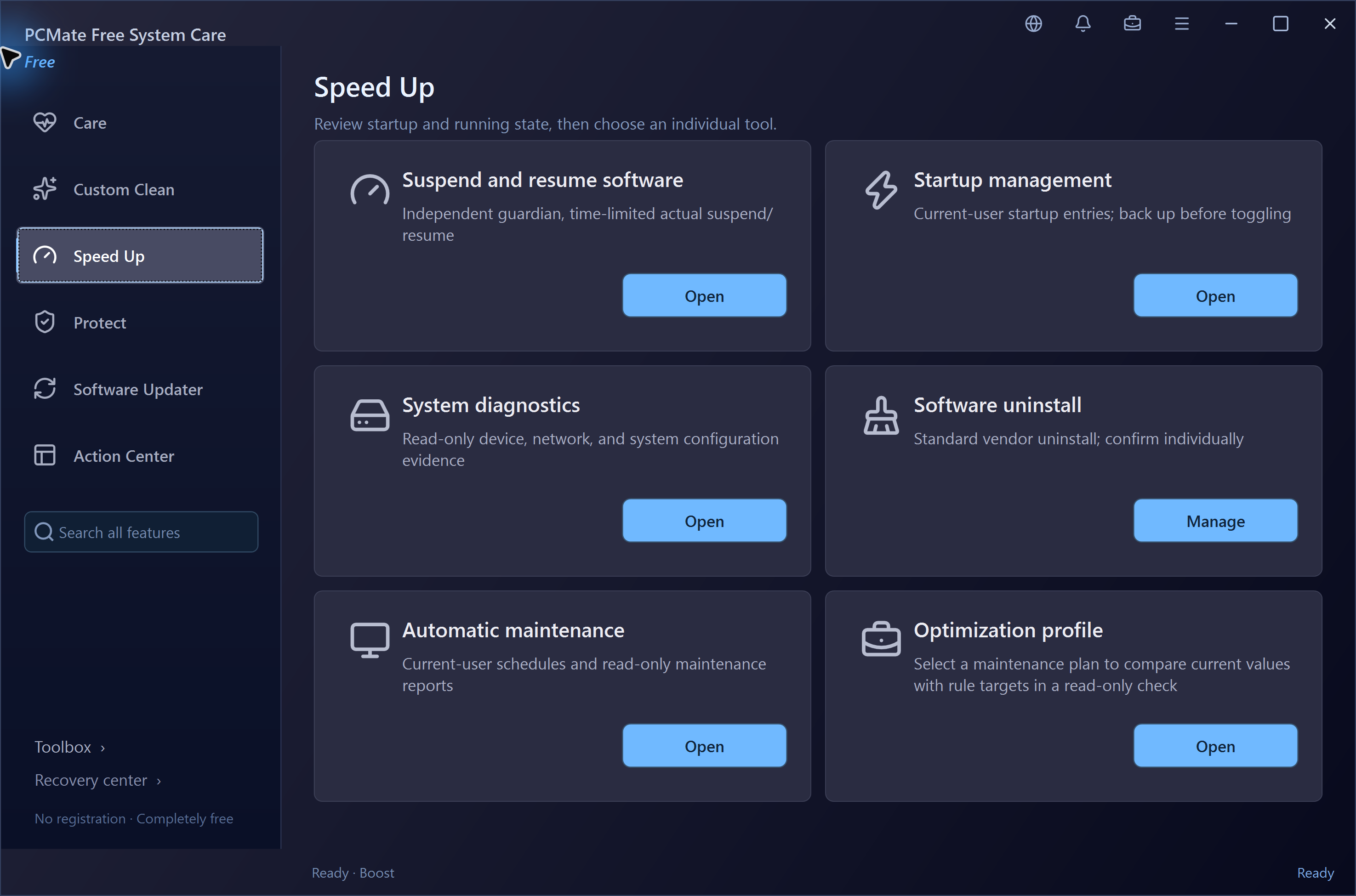
Use Startup Manager when a familiar application opens at sign-in and you prefer to open it yourself. Keep the first change narrow enough that you can recognize its effect at the next sign-in.
Open Startup Manager from Speed Up or find it in the Toolbox. Inspect the current-user Run or Startup item and its command or path. Keep an entry unchanged if its purpose is unclear; a machine-level entry may be visible for reference without being editable here.
Choose the supported current-user item and use the backed-up disable action. Record which app and entry you changed. This affects its supported startup entry; it is not an uninstall operation and does not end an already-running application.
At your next normal Windows sign-in, check whether the selected app still opens automatically. Also launch it manually to confirm the behavior you wanted. Do not infer a faster measured startup time from the fact that one entry was disabled.
Use the saved Startup Manager record to restore the supported item. Read any comparison or conflict message if the underlying setting has changed since your action. Recheck the same entry rather than creating a new one from memory.
PCMate · Protect → Encrypted File Backups
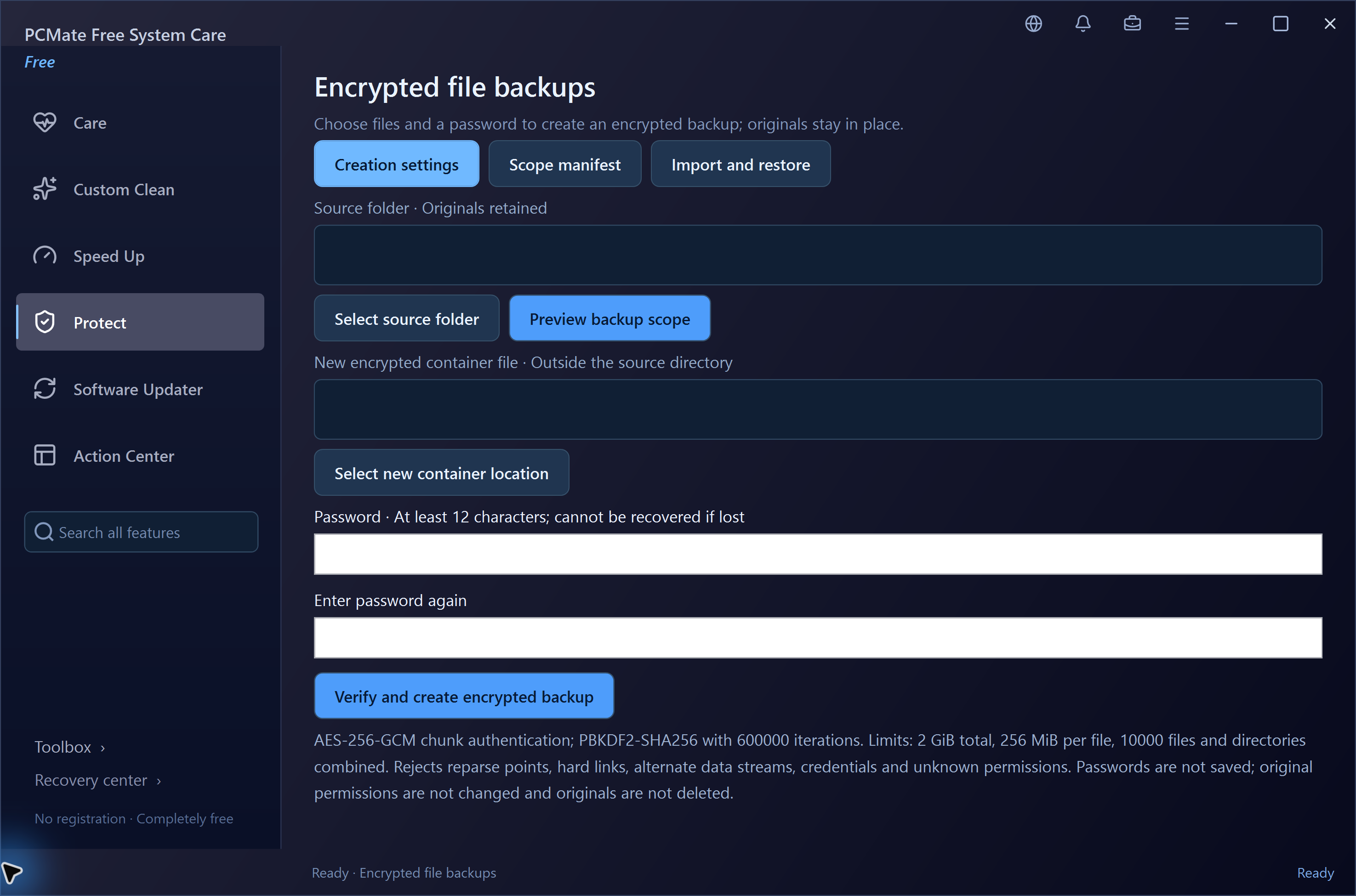
Use Encrypted File Backups for a password-protected archive of a selected folder. The task creates a separate .cbvault file; your original folder stays available at its current location.
Choose a small, known folder for the first backup. Check the current limits: 2 GiB in total, 256 MiB per file and 10,000 items. Select an archive destination and keep the password somewhere you can retrieve independently of the archive.
Select the folder in Encrypted File Backups and start the confirmed creation task. The archive uses chunk-authenticated AES-256-GCM encryption with PBKDF2-SHA256 password derivation. PCMate verifies the created archive; read the reported outcome before relying on the copy.
Import the archive with its password and choose a new destination directory. Verification precedes decryption. Open the restored files with their usual applications and compare the material you need, rather than counting an archive filename as proof of a usable backup.
Keep the archive and its password available for future restores. The original folder has not been hidden, locked or removed. Decide separately how the originals and additional backup copies should be stored; this workflow does not make their other locations private.
Use PCMate Free System Care. Startup Manager, Cleanup Recovery Center and Encrypted File Backups are included tools in this main application. The separate EXE Lock, File Recovery and File Shredder downloads have their own guides below.
Yes. PCMate Free System Care is 100% free to use, without registration, subscription or activation. A password you create for an encrypted backup protects that archive; it is not product registration.
100% free. No registration, subscription or activation.
Windows 10 & 11 · 64-bit