Choose the files that can go
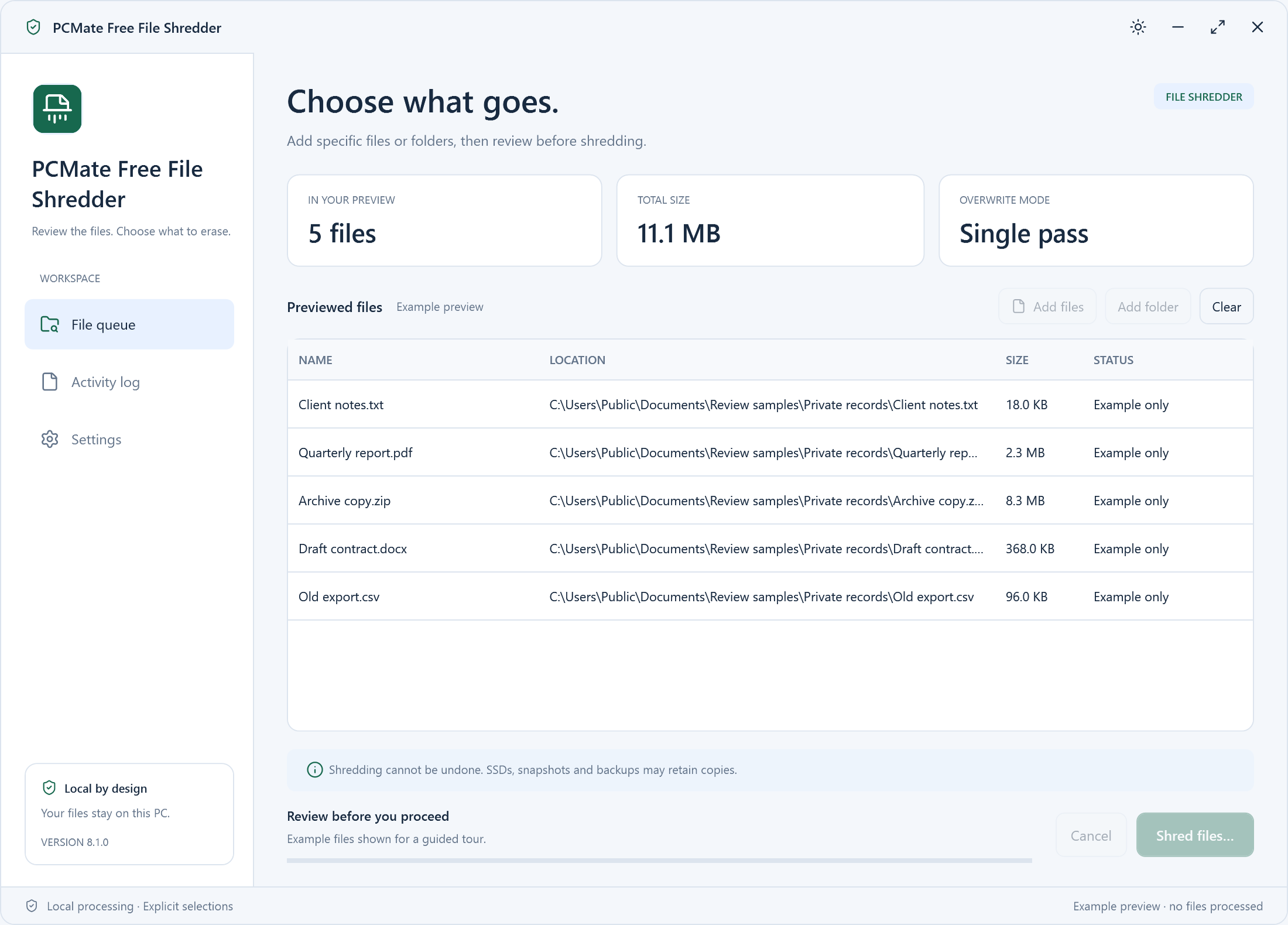
Build the selection yourself from ordinary files you recognize. The queue shows their paths, giving you a chance to distinguish a disposable draft from the final version.
 PCMate Free File Shredder
PCMate Free File Shredder for Windows
Remove selected ordinary files through an overwrite-and-delete operation. PCMate Free File Shredder is useful for working exports, outdated drafts and other files you have decided to discard. Review the exact paths, keep any required copies and confirm the selection.
100% free. No registration, subscription or activation.
Windows 10 & 11 · 64-bit
Choose a personal task
Treat a file as disposable because you know its purpose and retention needs. A name such as old or copy is useful context, but it is not a reason by itself to shred it.
Keep the source or final result you still need, then select the ordinary exported file you have finished using. Read its full location before confirming.
Separate keep from discard →Open the retained version first and confirm it contains the work you want. Add only the draft intended for disposal to the queue.
Review the selected files →Decide what to do with the other copy independently. Shredding the selected local file does not remove an unrelated backup or cloud version.
Check the scope of removal →Build the selection yourself from ordinary files you recognize. The queue shows their paths, giving you a chance to distinguish a disposable draft from the final version.
The BleachBit file-overwrite engine processes the selected files and removes them. This is a deliberate disposal operation, with confirmation before it begins.
Check the reported outcome for your selection. A completed file operation concerns that selected copy, so account for independent backups and cloud versions separately.
Choose your copies
Personal tasks often leave several ordinary files behind: a temporary export, a revised draft and a final copy in another folder. Begin by deciding which version still matters. Open that retained copy and confirm it contains what you need before placing an unwanted working file into the shredder selection.
Read the paths in PCMate rather than relying on similar-looking names. A file on the desktop and one in your documents folder may serve different purposes, even if their names match. Select the exact disposable files and resolve any uncertainty about their role before proceeding to the confirmation step.
Dispose deliberately
PCMate Free File Shredder uses the BleachBit file-overwrite engine to overwrite selected ordinary files before removing them. Review the queue and confirm the intended operation when your selection is ready. You remain responsible for choosing the files; the tool does not decide which personal material has become unnecessary.
This workflow is useful when you have reached a final disposal decision. It does not put the files into a recovery area for you to reclaim later. Leave a file out whenever you still need to check its contents or ask whether another person needs a copy, then return to the task after that decision is settled.
Finish the task
After the operation, read the reported results for the files you selected. If a file did not complete successfully, inspect that path and the reported outcome before deciding what to do next. A result review closes the loop between the material you intended to discard and the action the application actually completed.
A separate backup, an emailed attachment or a cloud-stored version is another copy with its own retention needs. The selected-file operation does not discover or remove those versions for you. Keep a short list of relevant locations if your task involves several copies, and handle each one through the appropriate application or storage service.
PCMate Free File Shredder workflow
Identify ordinary files that you have finished with and want to remove. Keep any copy you still need outside the selection before adding files to the shredder's list.
Read the queued paths and remove anything added by mistake. Confirm the actual location and intended file, rather than deciding from a familiar filename without looking at its folder.
Start only after you have reviewed the selected files and retained any needed copy. The overwrite-and-delete operation is permanent, so make this decision separately from recoverable everyday cleanup.
Check the reported outcome for the files you selected. If other copies remain in cloud storage, separate backups or another location, manage those copies through the corresponding storage system.
Questions about the product
This is an overwrite-and-delete workflow for permanent disposal of the selected files. It does not send them to the Windows Recycle Bin or a recovery area. Keep anything you may still need before confirming, rather than planning to retrieve it afterward.
No. PCMate Free File Shredder processes selected ordinary files. It does not provide whole-disk erasure or a free-space wiping mode. Choose it for file-level disposal, not as a way to prepare an entire storage device for transfer or retirement.
No. File overwriting cannot guarantee removal of all historical data on SSD storage, in snapshots or in backup systems. The operation concerns the selected ordinary files. Consider the storage technology and separately retained copies when deciding how to handle the rest.
Those copies are outside the selected-file operation. Handle cloud versions, backup archives and other stored copies through their own services or storage systems. Removing the local selection does not mean every separately retained version has also been processed.
Read the complete path of each queued file, remove anything added accidentally and keep any required copy outside the selection. The application uses the BleachBit overwrite engine for your chosen files, so the selection should reflect a deliberate disposal decision.
The signed installer supports Windows 10 or 11, 64-bit. The included features are 100% free without registration, subscription or activation. Setup may show an optional RelevantKnowledge invitation; declining or skipping it does not prevent use of PCMate Free File Shredder.
PCMate Free File Shredder
Download PCMate Free File Shredder and review your first file selection. Keep any required copy before confirming. Included functions are free, with no registration, subscription or activation code.
100% free. No registration, subscription or activation.
Windows 10 & 11 · 64-bit
Windows setup: a signed installer for PCMate Free File Shredder.
Portable ZIP: extract the entire folder and keep its runtime, icon, brand.ini and notices together.
Setup may present an optional RelevantKnowledge invitation. You can skip or decline it and use the application.