Cache and temporary-file results
See supported cache and temporary-file candidates by path, category and size. Confirm selected moves to recovery before making a separate permanent-removal decision.
PCMate Free System Care
100% free Windows PC cleaner and maintenance software
Check Windows maintenance tasks, review temporary files and choose what to clean. Manage sign-in apps and create encrypted folder backups in the same free application.
100% free. No registration, subscription or activation.
Windows 10 & 11 · 64-bit
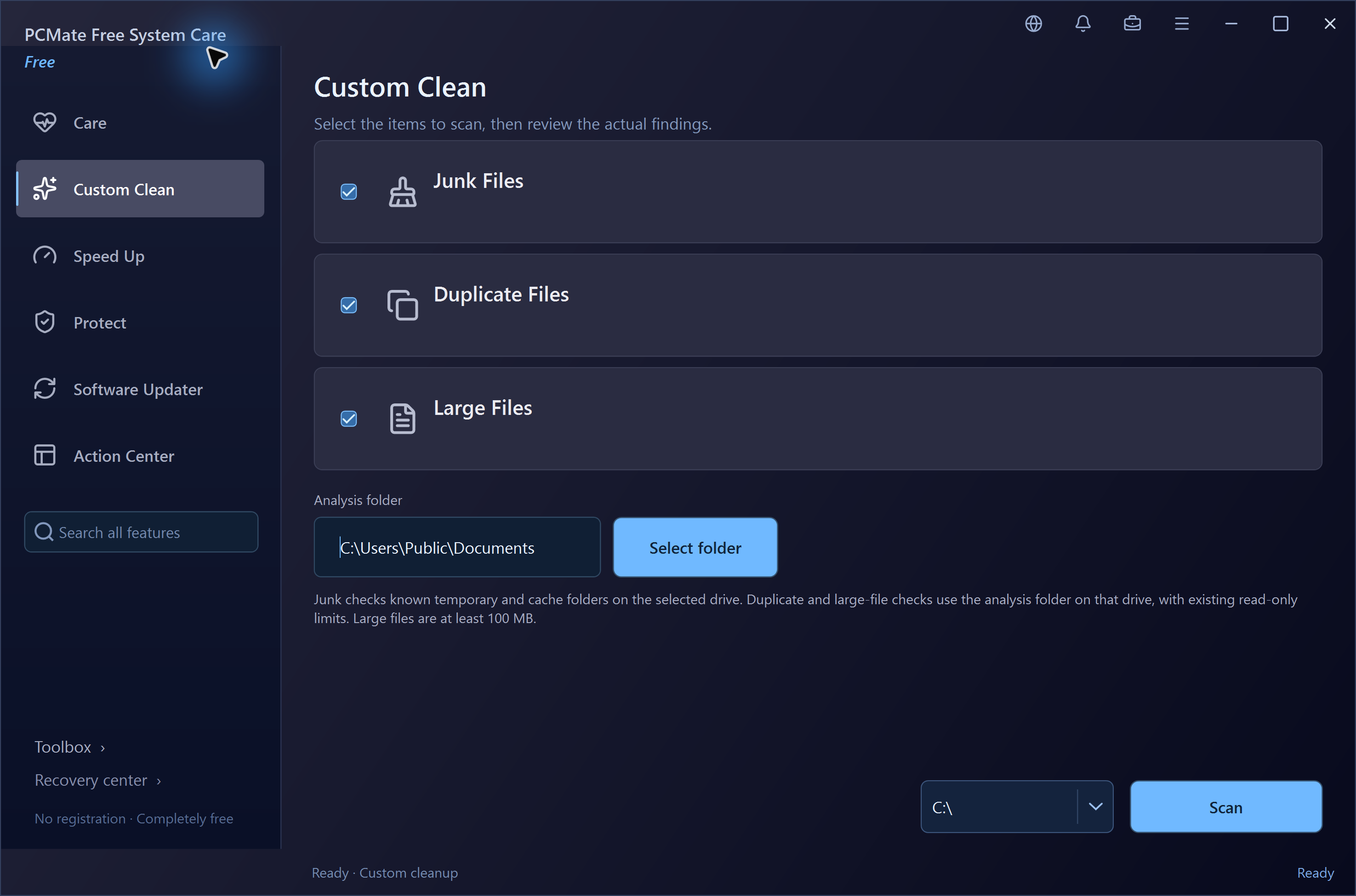
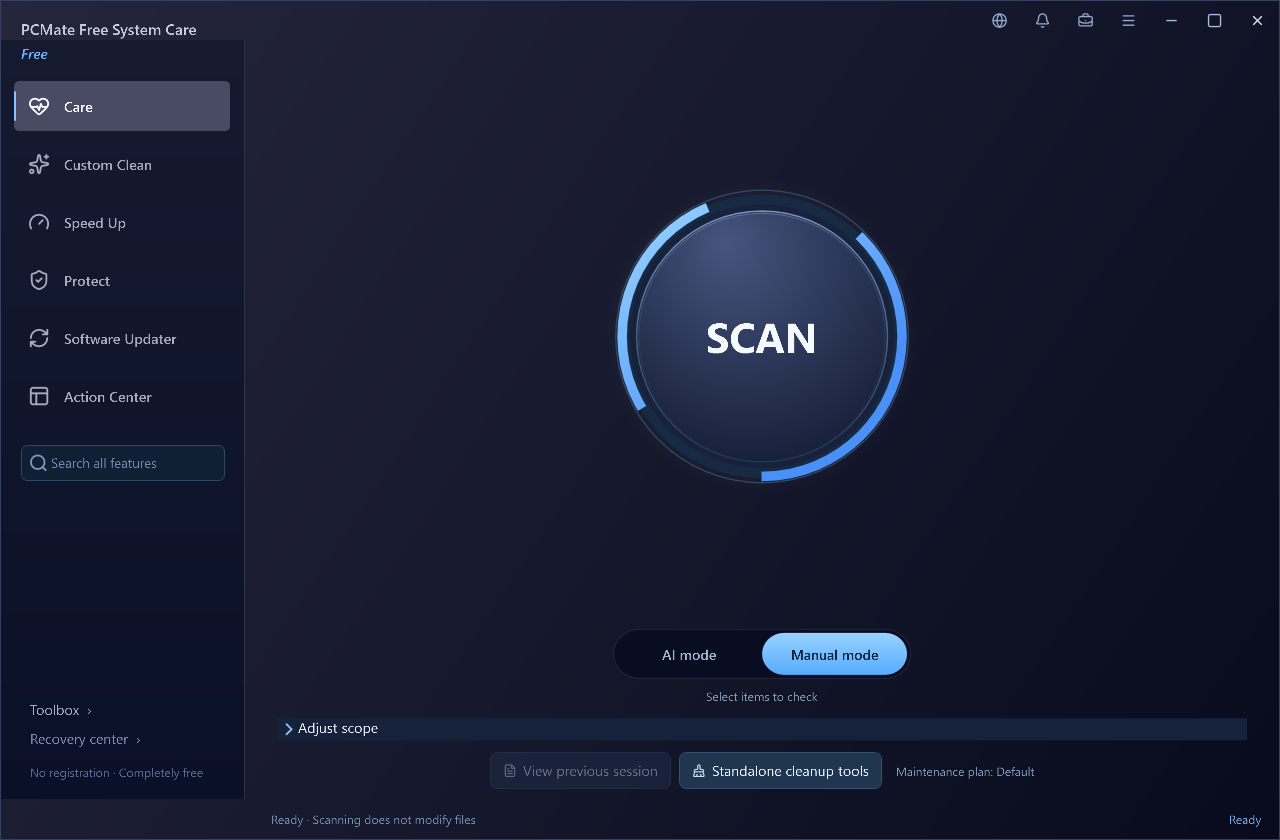
A browser cache, an unnecessary sign-in app and a folder of irreplaceable documents need different tools. PCMate puts those tools in the same application: PC Care organizes a maintenance scan, Custom Clean opens the cleanup choices, Speed Up gathers performance-related controls and Protect leads to backup and settings tools. Start with the job that matters today, then use the complete directory when another task comes along.
Care scan · AI and Manual modes
The Care workspace is the starting point for a maintenance check. Its AI mode uses built-in rules and PC context to choose a scan scope; Manual mode lets you select the checks yourself. Both lead to findings you can examine before changing files or settings.
Use the rule-based selection for a guided starting point, or select individual maintenance areas in Manual mode. Check the scope before starting so a file cleanup or supported configuration review fits the task you have in mind.
See the module being checked, the current object, counts and progress. Skip a module or request a stop when you want to change direction. The scan gives you information first; finding an item does not automatically authorize its removal.
Open a result category and read its paths, sizes or setting details. Confirm the supported items you want handled, then keep the session and recovery records available. Some findings provide information or a Windows tool rather than an automatic repair.
Inside your SystemCare application
See the actual cleanup, startup and protection workspaces first. Each chapter explains the task, the information shown and the supported result, followed by storage analysis, software management and Windows maintenance.
Cache and temporary-file cleanup
PCMate identifies supported Windows temporary folders, browser caches and application caches, then lists the candidates by category, path and size. This gives you a practical starting point when temporary data has accumulated across several locations. Open a listed location for context, see why a file was skipped and select the items you want to handle instead of treating the scan total as a deletion command.
The first cleanup stage moves supported files into the recovery area, where they remain available for restoration. Those retained copies still occupy storage; permanently removing copies you no longer need is a separate confirmation. Related tools inspect broken local shortcuts, empty folders and invalid registry references. Registry actions preserve the original type and value bytes for supported current-user changes, with checks when restoring a saved value.
Application-specific coverage includes targeted caches for Teams, WhatsApp, Nextcloud and Calibre, rather than all data belonging to those apps. Optional diagnostic-log selections are handled only when the logs are older than seven days and the relevant applications are inactive. This cache-and-log workflow leaves browser history, cookies, saved passwords, chats and synchronization data outside its cleanup scope.
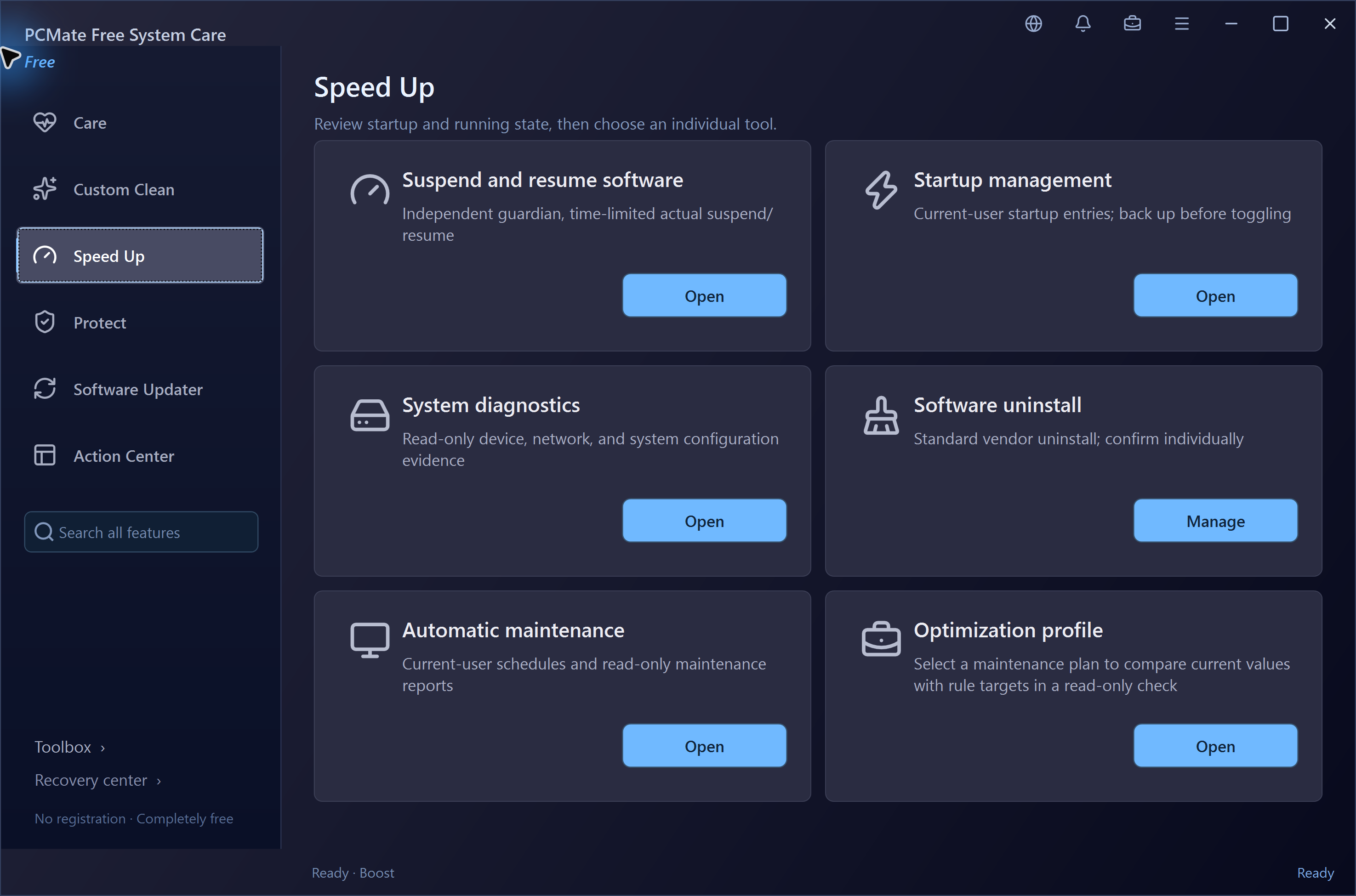
Sign-in apps and PC activity
The startup list shows the names and paths behind supported entries for your Windows account, including Run and Startup locations. Keep the apps you want ready at sign-in and use backup-and-disable for an entry you would rather launch yourself. The saved setting supports the matching restoration workflow, so a change to your daily startup list can be revisited without recreating the entry by hand.
During a session, CPU, physical-memory and process working-set information help you see which applications deserve a closer look. A separate app-control action can lower and later restore the scheduling priority of a supported user process. You can also inspect Windows animation preferences and select an existing power plan. These are specific controls beside the relevant information; the monitor itself does not clear RAM or make every PC faster.
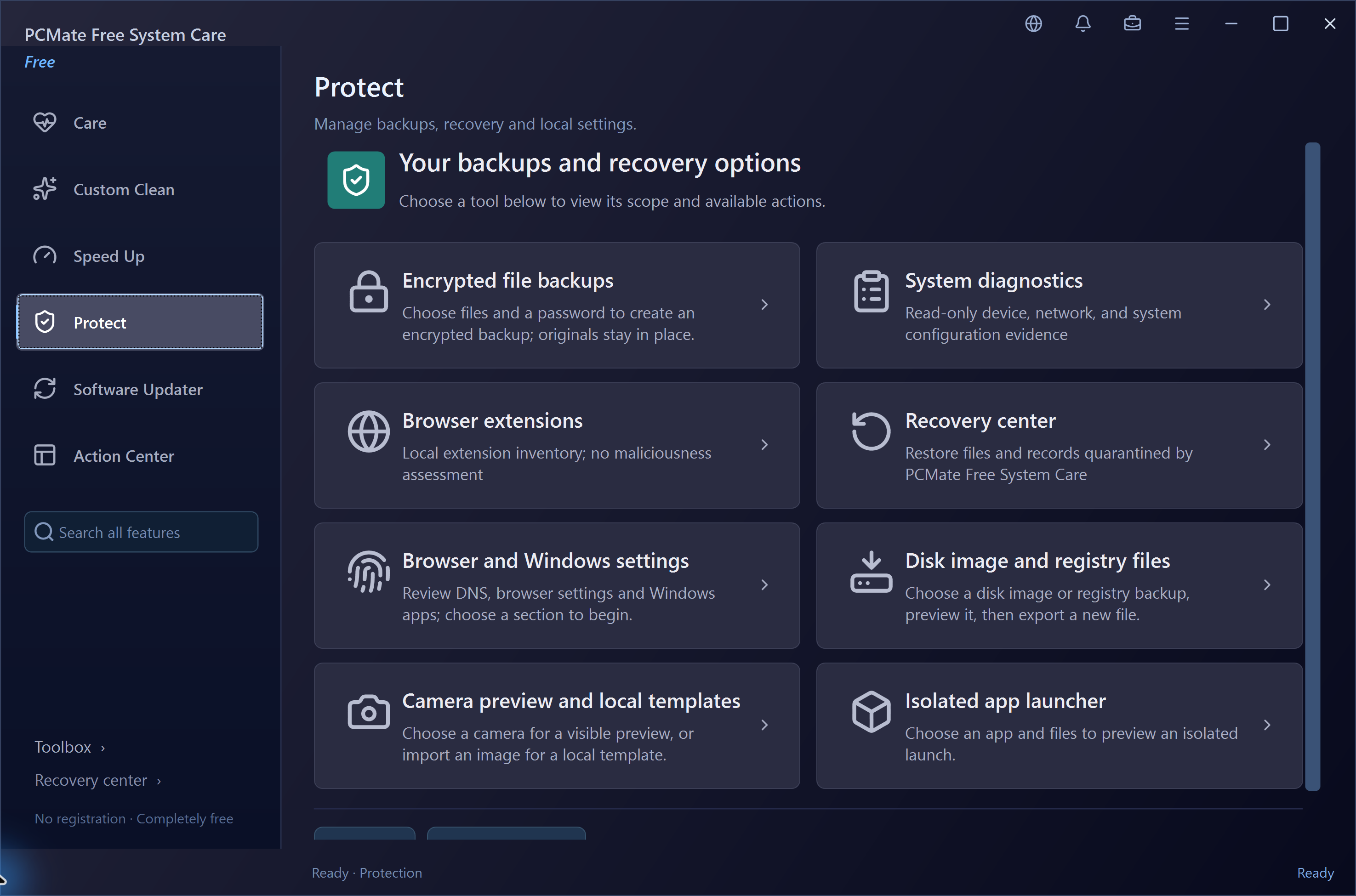
Encrypted copies and browser settings
Choose a folder of documents, project files or other material and save it as a password-encrypted .cbvault backup. PCMate uses AES-256-GCM authenticated encryption for the backup while leaving the original folder accessible. Verify the finished copy and retain both its password and file. When you need the contents, import the backup and restore into a new directory so you can check the recovered files before using them.
The settings tools cover a different part of everyday protection. Inspect browser extension names, versions, profiles and paths; back up and change supported Chrome, Edge or Brave homepage and startup-URL fields; or configure DNS for a supported connection. Optional DNS change monitoring runs only after you enable it and while PCMate is open. These controls provide concrete backup and configuration tasks alongside your normal Windows security software.
Choose your first PCMate job
Start with a recognizable file or Windows task, then use its own workspace and controls.
See supported cleanup locations, file categories and sizes, then move the selected candidates through the recovery workflow.
Explore cleanup →Identify an account startup entry by its path, keep its backup and choose whether it should launch automatically.
Manage startup →Save a password-encrypted copy at a separate destination and restore its contents into a new directory when needed.
See backup and protection →Three practical workflows
Use the screen for the job you mean to do. A maintenance scan produces findings; cleanup, startup changes and encrypted backups each have their own confirmation and result.
Start with PC Care in AI or Manual mode, or open the cleanup choices directly. Use a familiar path and its file information to decide what belongs in this cleanup.
Choose the maintenance checks or cleanup categories you want. Follow progress, then open the results to see categories, file paths, sizes and skip reasons.
Select supported temporary or cache files and confirm the move to the recovery area. PCMate checks file identity and the allowed location again before moving a selected item.
Find the cleanup record and restore a retained file if needed. These copies still occupy space; remove copies you no longer need only after a separate permanent-removal confirmation.
Open Startup Manager from the Speed Up workspace. Work with the entry for an app you recognize and keep its backup for a later change of mind.
Read the entry name and full target path. Check that it is the current-user Run or Startup entry belonging to the program you want to manage.
Use the supported backup-and-disable control and confirm that one entry. A machine-wide service or scheduled task is a separate Windows administration task.
Check the recorded change. Use its matching restore action if you want the supported entry to launch with your account again.
Choose Encrypted File Backups from Protect. The backup is a separate copy, so you can continue using the source folder while keeping the encrypted package elsewhere.
Inspect the chosen contents and the tool's size limits. Pick a backup destination and retain the password that will be needed to open the encrypted copy.
Save the AES-256-GCM encrypted backup and allow verification of the finished file. Keep the backup and its password available for restoration.
Import the saved package with its password. PCMate authenticates the backup before publishing decrypted contents into a new folder for you to inspect.
Screenshots show the actual workspaces used to start each task; the written steps explain the actions and checks that follow.
Folders, large files and matching copies
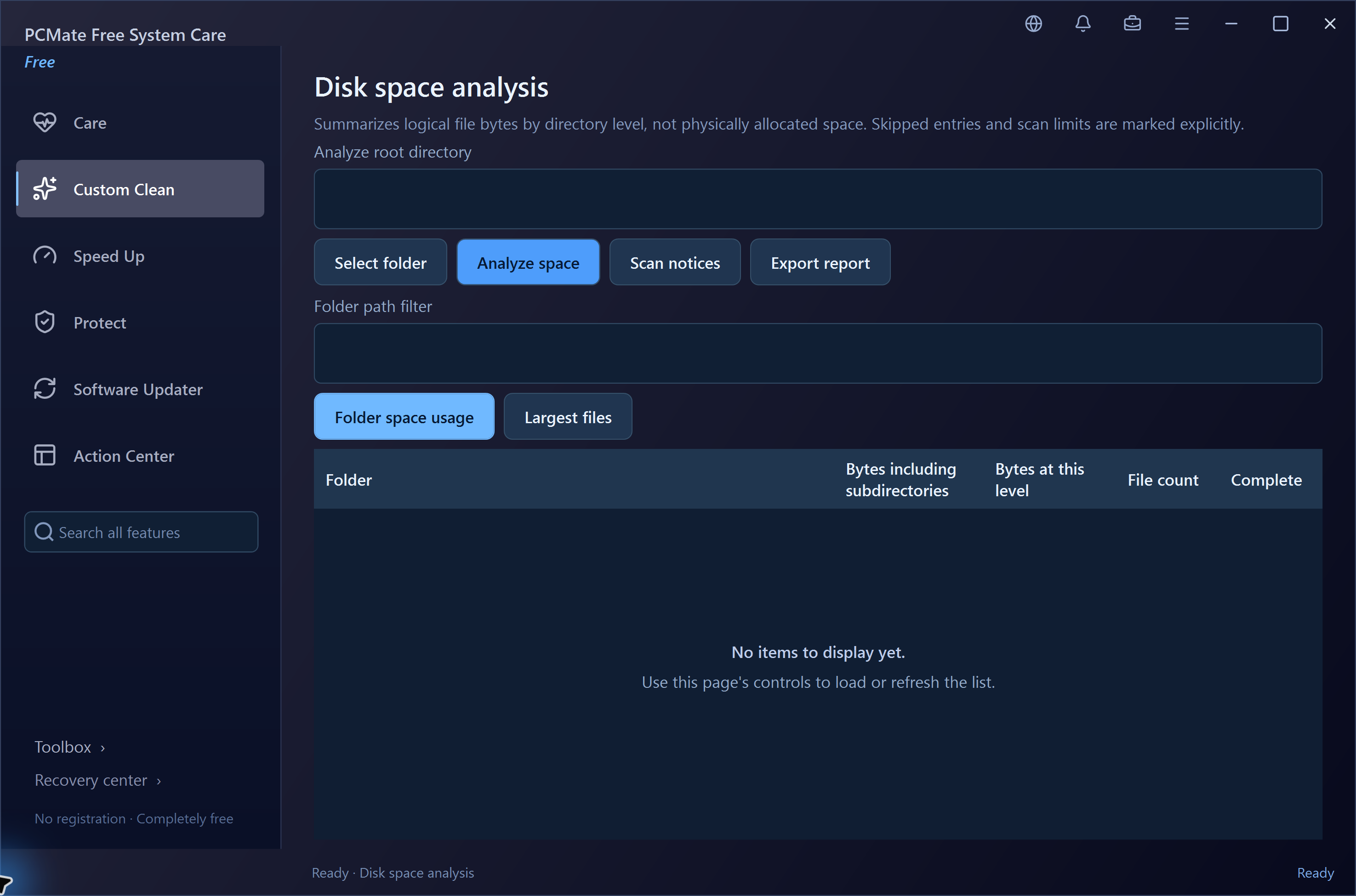
Start with the disk-usage view to see logical file-size totals arranged by folder. Follow the larger branches to discover whether old exports, downloads or a project archive account for the space. The large-file analyzer gives you a direct list of files at least 100 MiB in size, with paths that lead back to their original locations. You can investigate the biggest items without opening every folder yourself.
For repeated material, content-hash matching groups files that have the same contents even when their names differ. These analysis views let you inspect the copies and decide which still have a purpose; they do not automatically delete a version for you. A separate application-folder migration workflow checks a supported move to another drive, verifies copies and keeps a return path. Its retained source backup continues to occupy space until handled through the appropriate workflow.
Clean · Speed Up · Protect
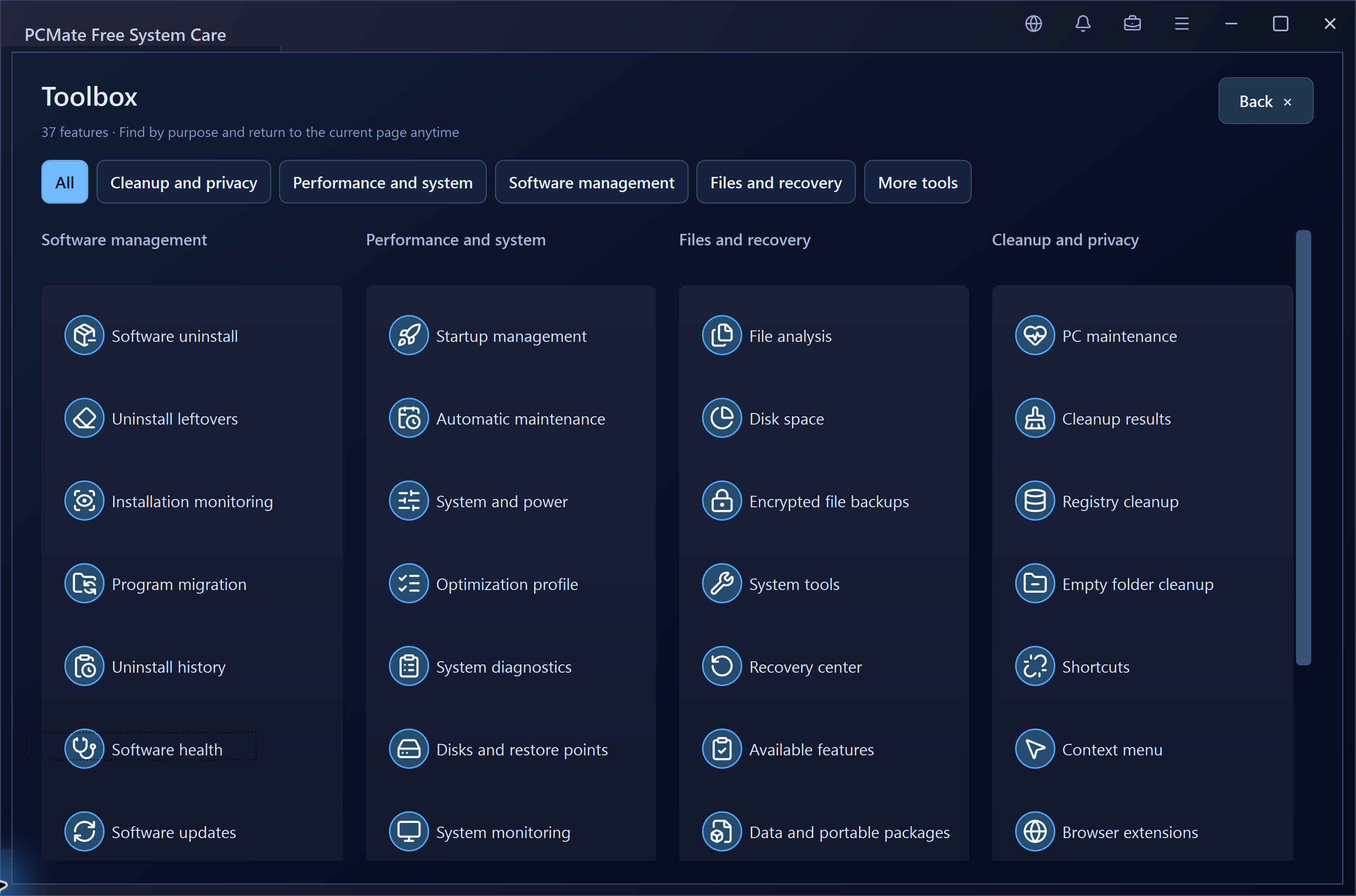
Go straight to the capability behind your task. These features are included in PCMate Free System Care; the full 37-tool directory also covers software, storage and specialist Windows work.
Deal with known leftovers and the small broken references around everyday files.
See supported cache and temporary-file candidates by path, category and size. Confirm selected moves to recovery before making a separate permanent-removal decision.
Inspect supported invalid program-path, COM/ActiveX, font and file-association references. Selected current-user value changes retain their original data for recovery.
Find confirmed missing local targets and choose an existing replacement where repair is supported. The original shortcut is backed up and the action is recorded.
Examine folders confirmed to be empty and select the supported ones to remove. The final emptiness check keeps a directory with newly added contents out of the operation.
Decide which apps start automatically and understand the workload of your current session.
Match an account startup name to its path, then back up and disable a supported entry. Restore it through the saved record if it belongs in your sign-in routine again.
See processor use, physical-memory information and process working sets while investigating an active app. The readings help you choose where to look next.
Preview supported Windows animation choices and select a power plan already present on the computer. Original settings are saved for the relevant restoration workflow.
Compare current and target values for an available optimization profile, with explanations and source locations. Select a profile for the next maintenance scan without applying a blanket change immediately.
Preserve a separate file copy and understand important browser or connection settings.
Package a selected folder into an authenticated .cbvault backup. Keep the password, verify the saved copy and restore its contents into a new folder when required.
Read extension names, versions, profile information, IDs and local paths. Open a directory or export the details when you need a record of the installed extensions.
Back up, change and restore supported Chrome, Edge or Brave homepage and startup URLs. These are specific configuration fields, separate from browser history or password storage.
Preview public or custom DNS addresses for a supported interface and retain the original mode. Opt into change monitoring during the active PCMate session when you need it.
Installed applications and exact update packages
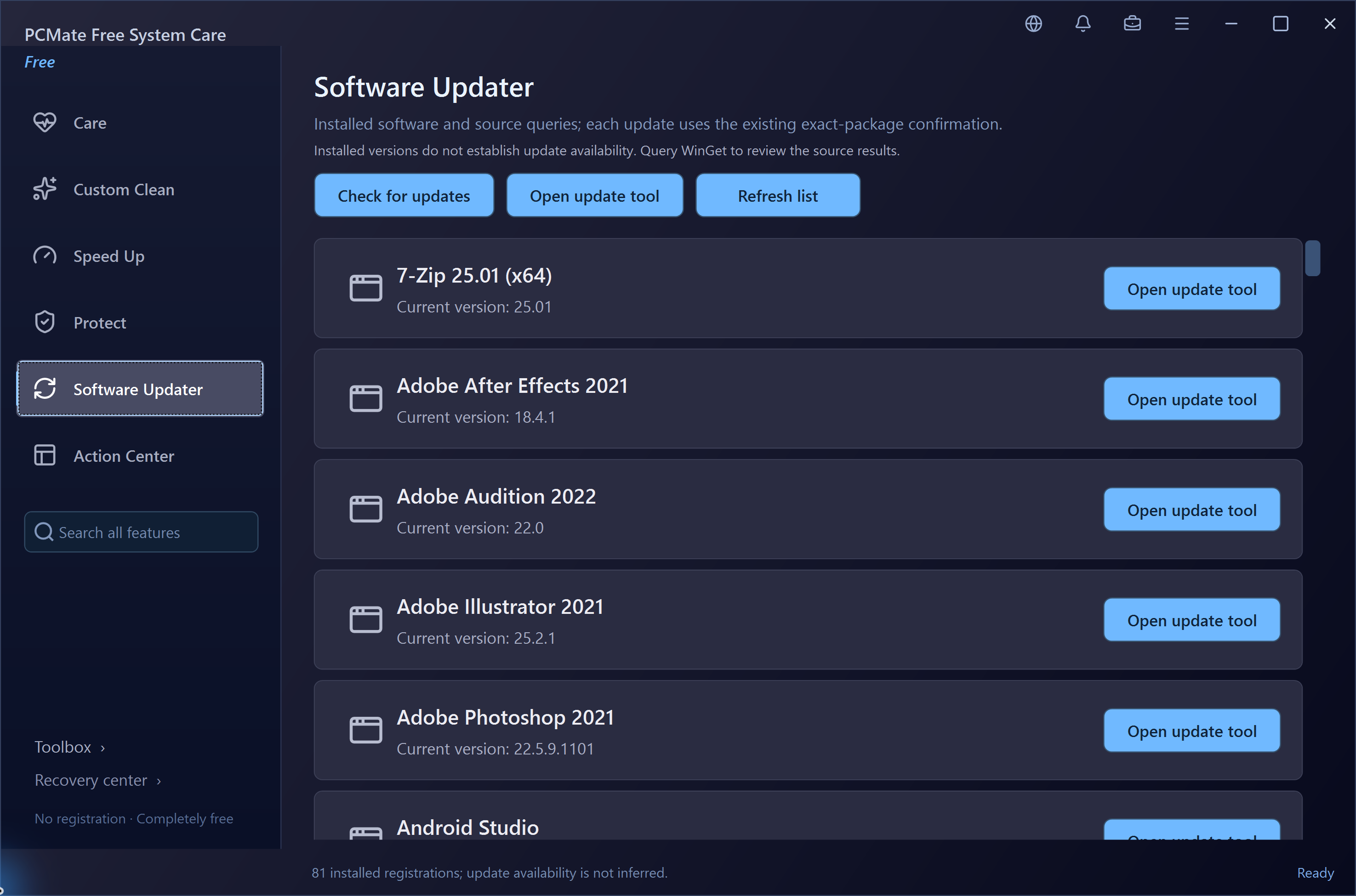
Software Updater brings installed programs and their current versions into one list. Find a familiar application, query WinGet for available package updates and inspect the exact package before choosing its individual interactive update. You get a clear route from the installed version to the package you intend to maintain, while the publisher's installer remains responsible for the installation itself.
When a program is no longer useful, Software Uninstaller opens its registered removal entry. Save a qualified product snapshot before uninstalling if you want to inspect file leftovers afterward. PCMate compares identity and content against that earlier record rather than deciding ownership from a similar folder name. Scoped installation monitoring, application-registration checks and uninstall history supply further information for the apps you keep as well as the ones you remove.
Scheduled checks and Windows tools
Set up a one-time or daily maintenance scan for your signed-in Windows account, then come back to its saved report. Scheduled scans gather supported findings; you choose any later cleanup or setting change. View and cancel plans from the same workspace. This is useful for keeping a regular check on a PC without turning a scheduled report into unattended deletion.
The Windows tools provide direct starting points for system information, a read-only disk check and requesting a restore point when the Windows environment permits it. Operation history and recovery records help you connect a previous action with the file or setting it handled. You can also schedule a shutdown that does not force applications to end. Choose the relevant task, retain its record and use those details when your next maintenance visit begins.
From a PC problem to a practical result
Find the likely area to inspect, use the matching control and check a result you can actually see. A symptom is a starting point for investigation, not a diagnosis by itself.
Your documents and downloads fit on the drive, but available storage keeps shrinking.
A program you rarely need opens whenever your account starts.
You are about to reorganize documents you still need to keep.
You saved a qualified product snapshot before uninstalling and now want to inspect the remaining files.
Inside version 0.13.1
The current release also covers these focused jobs. Each has its own input, action and record rather than a single button that changes unrelated parts of Windows.
The Care view identifies the current module and object, shows counts and progress, and lets you skip or request a stop. Categorized findings stay available for the selected next action.
Explore this capabilityPoint a supported local shortcut at an existing replacement target, with a backup of its original contents. Confirmed broken shortcuts can instead be isolated with their corresponding recovery record.
Explore this capabilityInspect traditional static context-menu entries and back up a supported current-user item before disabling it. Use the saved record when you want that particular entry returned.
Explore this capabilityCreate a portable ZIP containing the application, brand configuration, native dependencies and license notices, with file-digest verification. Personal scan and recovery records remain separate.
Explore this capabilityVersion 0.13.1 · free Windows desktop application
Choose the download and interface that suit the way you use the PC. The practical requirements are stated up front.
Every included tool is available without an account, subscription or activation code. The download details explain the signed installer and its optional installation offer.
The self-contained desktop edition includes its runtime. Use the signed setup or keep the complete extracted portable folder, including its dependencies and notices.
Core file analysis, scans, encrypted backups and maintenance records work locally. WinGet queries, publisher installations and external links require their relevant network connection.
English is the default. Other offline interface choices are simplified Chinese, German, French, Spanish, Japanese, Brazilian Portuguese, Korean, Italian and Hindi. Choose a light or dark theme and one of three text sizes, along with the available appearance options.
d9aecca831e9124834375dc345c2c07bb948c004358abf8648aed32237cb6af7Installation details · Privacy information · Help and support
Included in SystemCare
Use the focused selections above for common jobs, or browse the complete directory for a specific file, software or Windows task. Each description identifies an inspection view, a supported action or a Windows integration.
37 tools and feature areas
Bring everyday maintenance into one workspace, follow the scan as it runs and choose eligible changes after seeing the results and their locations.
DetailsSee temporary files and cache candidates with their paths and sizes, then move selected eligible files into a recovery area for another look.
DetailsLook through broken registry references and individually eligible current-user values, with backups for available changes and a matching record when restoration is possible.
DetailsTidy a chosen area by checking folders that appear empty, confirming eligible removals and keeping a record that can recreate the removed directory names.
DetailsCheck local shortcuts for missing targets, isolate confirmed broken entries or choose an existing replacement target, keeping the original shortcut available through its record.
DetailsFind files at least 100 MiB and groups with matching contents, open their locations and decide for yourself which copies still have a purpose.
DetailsFollow folder totals to the places holding the most file data, inspect larger branches and keep your files unchanged while learning where to look.
DetailsCreate a password-encrypted backup of a chosen folder, verify the saved copy and restore into a new directory while keeping the original files accessible.
DetailsLook through files moved into the app's cleanup recovery area, restore eligible entries or separately confirm permanent removal of the copies you no longer need.
DetailsExport a portable copy of the app, or separately choose irreversible erasure for eligible files; overwriting does not guarantee removal from SSDs or backups.
DetailsSee local browser extensions with their names, versions and locations, opening the relevant folder when you want more context about an item already installed.
DetailsInspect selected browser start-page settings, recent camera-use evidence and Windows app details, with separate backup or confirmation steps for the changes the page offers.
DetailsChoose DNS settings for an eligible adapter, keep its original configuration and optionally monitor for changes while the application remains open after your explicit selection.
DetailsFind a registered desktop application, inspect its version and location, then open the publisher's own uninstaller when you decide to remove it from Windows.
DetailsUse a qualified snapshot saved before uninstalling to examine leftover files afterward, choosing eligible files for recovery-backed isolation rather than guessing from names.
DetailsCompare snapshots of a chosen installation folder and save original contents beforehand when you want a possible return path for eligible recorded changes.
DetailsMove an eligible app folder between drives with copy verification and a return path, keeping the original backup until you explicitly release it.
DetailsKeep the details of uninstall attempts started from this app, including their times, outcomes and related snapshots, so the sequence is easier to revisit.
DetailsLook up registered app paths and uninstall entries when a program is hard to locate, then use the information to find the appropriate removal route.
DetailsCheck update availability through WinGet, read an individual package's details and choose whether to continue with that publisher's interactive update process when available.
DetailsInspect an eligible user app's process and startup details, lower its CPU scheduling priority when appropriate and restore that priority through the corresponding control.
DetailsPark an eligible exclusive app folder at a recorded fallback location after inspection, keeping a return path while understanding that the folder still occupies disk space.
DetailsDecide which eligible entries should start with your Windows account, keeping a backup when you disable an item and a way to restore it.
DetailsArrange a one-time or daily scan report while your account is signed in, or schedule a shutdown that does not force applications to close.
DetailsInspect classic right-click menu entries and disable eligible current-user items after backup, with a matching restoration option when you want the entry back.
DetailsAdjust selected visual preferences or choose an existing Windows power plan, keeping original values where restoration is available and making each change separately.
DetailsCompare available configuration profiles and their explanations before deciding what to investigate, with eligible changes handled separately through the maintenance workflow and matching records.
DetailsKeep device, driver and network details together when you need to understand your computer, with source information and available exports for your own reference.
DetailsRun a read-only Windows disk check after confirmation, or request a restore point when Windows permissions and system conditions allow the operation to proceed.
DetailsTake a quick look at CPU and physical memory use, uptime and process working sets when you want a clearer picture of your current session.
DetailsFind adapter addresses, gateways, DNS values and link information together, with an export option and a direct route to Windows network settings when needed.
DetailsReach familiar Windows storage, startup, power and other maintenance tools from one place, then return to PCMate when you want to refresh the local information.
DetailsExplore qualified deleted records in an offline NTFS partition image or work with a registry-file copy, keeping these specialist tasks separate from everyday cleanup recovery.
DetailsPause one eligible user process for a short timed lease, with an independent watcher and an immediate resume option rather than a promise of released memory.
DetailsChoose a camera for a visible local preview and explicitly confirmed captures, with encrypted local records rather than hidden monitoring or an identity-authentication promise.
DetailsLaunch a qualifying standalone native program inside a restricted AppContainer after preview, keeping this separate session distinct from protection of every application on your PC.
DetailsFind a plain explanation of the application's available tools and their boundaries when you want to understand what a particular page can actually do.
DetailsBefore you download
Yes. All included features are 100% free, with no registration, subscription, activation code or payment to unlock a tool. You can use the application without creating an account. Third-party installers and services you choose to open keep their own terms.
Use Windows 10 or Windows 11, 64-bit. Choose the signed setup or extract the complete portable ZIP. The self-contained desktop edition includes its runtime; keep all DLLs, native dependencies and notices with the application.
AI mode uses built-in rules and the PC context to choose a maintenance scan scope. Manual mode lets you select the checks yourself. Both show progress and grouped results. AI does not mean an online language model, and a finding is not a promise of automatic repair.
Supported cleanup first moves your selected files into recovery so a retained item can be restored. Those copies still take storage. After checking them, separately confirm permanent removal of copies you no longer need. Keeping a recovery copy and releasing its space are different stages.
The cleanup recovery area returns supported files this application moved there. Startup, registry and other configuration tools use their own saved backups and restoration checks. Keep the relevant records; they do not provide a general undelete scan or reverse permanently erased files.
The encrypted .cbvault package is a separate copy; the source folder remains accessible. A valid password authenticates and restores the package into a new directory. Keep that password carefully because there is no forgotten-password recovery.
It brings startup management, resource information and supported settings controls together. Back up and disable an account startup entry, inspect CPU/RAM and processes, or choose an available app-priority or Windows setting action. A resource reading does not itself free memory or guarantee a speed increase.
Use Protect for encrypted folder backups and supported browser or DNS settings tasks. Extension inventory supplies details, not a malware verdict. The current cleanup addresses recognized caches and optional diagnostic logs, not browser history, cookies or saved passwords. Keep your usual Windows security protection enabled.
PCMate Free System Care
Get the signed Windows setup or complete portable edition and begin with a PC Care scan, selected cache files, a startup entry or an encrypted folder backup. Every included feature is free, with no registration or activation.
100% free. No registration, subscription or activation.
Installation detailsThese optional downloads are separate applications, each with its own installer.