Search for a familiar filename
The NTFS record scan can provide surviving names and folder information. Filter candidates by name or type and choose the entries you want to attempt to recover.
 PCMate Free File Recovery
PCMate Free File Recovery for Windows
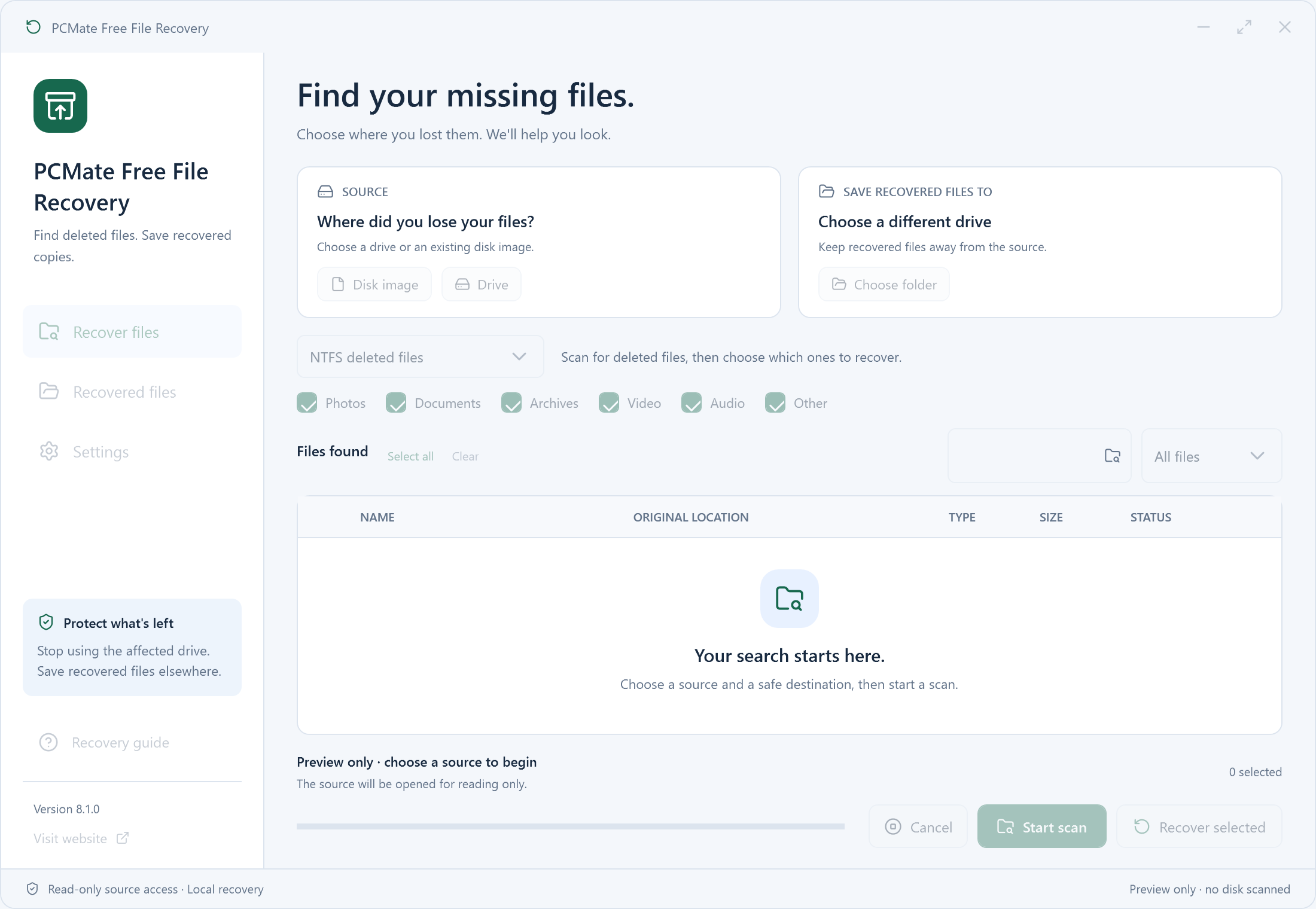
Search a Windows drive or a saved disk image for recoverable data. PCMate Free File Recovery lets you look through NTFS file records for recognizable candidates or use a deep content scan, then inspect the recovered files in a separate location.
100% free. No registration, subscription or activation.
Windows 10 & 11 · 64-bit
Choose a personal task
A useful recovery plan begins with the file you need and where it was stored. Identify the affected disk before downloading or saving anything else to it.
Try an NTFS record scan and use the available name or type filters. A recognizable entry helps you select candidates for recovery.
Search the record list →A deep search looks for contents instead of relying on the old directory entry. Prepare the output location before starting because matches are written during scanning.
Understand deep recovery →Check a document, image or other result in its usual application. Verify the contents rather than deciding solely from a familiar filename.
Review saved copies →The NTFS record scan can provide surviving names and folder information. Filter candidates by name or type and choose the entries you want to attempt to recover.
Use the PhotoRec-based deep mode when you need another way to look for data. It writes matching contents as the scan runs, ready for inspection in the output folder.
Keep recovery output away from the source. Open important results with the application normally used for them and check that the contents you need are present.
Find a familiar file
Think about the file you were working with: its name, type and the folder where it belonged. If it was stored on NTFS, start by inspecting deleted-file records. PCMate gives you a candidate list that you can narrow by name or type, making it easier to concentrate on the document or image you actually need.
Select the relevant candidates before starting their recovery. An entry may retain the original name and folder even when some of its data has changed, so treat the list as a way to identify possibilities. Save the attempted recovery separately and inspect the result before deciding that your missing work has been recovered successfully.
Search beyond filenames
If a record scan does not provide a usable candidate, deep recovery offers a content-based search. The PhotoRec-based engine looks through the selected source for recognizable file contents. This can be useful when the old name or directory information is missing and a familiar filename is no longer a reliable starting point.
Choose the destination before you start. Deep recovery writes matches while the scan is running; it is not an NTFS-style list that waits for you to tick individual candidates afterward. Allow time to inspect the output, because recovered items may have different names, may lack their original folders and may include files that were not deleted.
Keep and verify
Avoid using the affected disk for new downloads, installations or saved work while preparing recovery. When reading an actual Windows drive, choose output on a different physical disk. Another partition on the same device does not provide that separation. The application can also read a local .img, .raw or .dd image when you already have one.
Create an orderly destination for this attempt, then inspect the important results in the applications you normally use. Check document pages, photographs and other relevant content before copying the useful output into your regular folders. Keeping the attempt separate also helps you distinguish recovered copies from the originals or backups you already had.
PCMate Free File Recovery workflow
Pause downloads, installations and everyday use on the affected disk. Prepare the recovery application and another physical disk for saved results, so your preparations do not add unnecessary writes to the source.
Choose the disk image you want to examine, or run the app as administrator to select an actual Windows drive. Check the source and output, using a different physical disk for drive recovery.
Use NTFS scanning when you want to inspect deleted records and choose candidates. Choose deep recovery for content searching, remembering that it writes matches as scanning progresses rather than awaiting later selection.
Open the output folder and inspect the files you need. If you cancel, completed output stays available; a later recovery scan starts again from the beginning rather than resuming the earlier scan.
Questions about the product
Use the NTFS mode when you want to inspect surviving deleted-file records and select candidates by name or type. Deep recovery searches file contents through PhotoRec and writes matches during scanning. They are separate workflows, not two labels for the same selection process.
NTFS records may preserve that information when it survives on the source. Deep content recovery may not retain original names or folders and can also find files that were not deleted. Open the saved output to identify and verify the contents you need.
You can select a local .img, .raw or .dd disk image. To read an actual Windows drive, run the application with administrator access. Check the selected source before scanning, and use a different physical output disk for drive recovery.
No. Recovery depends on records and data that still exist. Content already overwritten or removed by SSD TRIM cannot be reconstructed by the application. Results also depend on the medium's condition; the tool does not repair a physically failing device.
Completed output stays in the destination when you cancel. You can inspect those saved copies, but a later scan starts from the beginning rather than resuming the previous scan position. In deep mode, remember that matches may already have been written during scanning.
Yes. Use the signed installer for Windows 10 or 11, 64-bit, without registration, a subscription or activation. An optional RelevantKnowledge invitation may appear during setup; you can skip or decline it and use the recovery features.
PCMate Free File Recovery
Use PCMate Free File Recovery without an account or paid activation. Prepare the source and a separate output disk first, then choose the scan that fits the information you still have.
100% free. No registration, subscription or activation.
Windows 10 & 11 · 64-bit
Windows setup: a signed installer for PCMate Free File Recovery.
Portable ZIP: extract the entire folder and keep its runtime, icon, brand.ini and notices together.
Setup may present an optional RelevantKnowledge invitation. You can skip or decline it and use the application.