Keep the original application
A lock changes access to the selected EXE. It leaves its contents and existing digital signature intact, so you can return to that same file after unlocking.
 PCMate Free EXE Lock
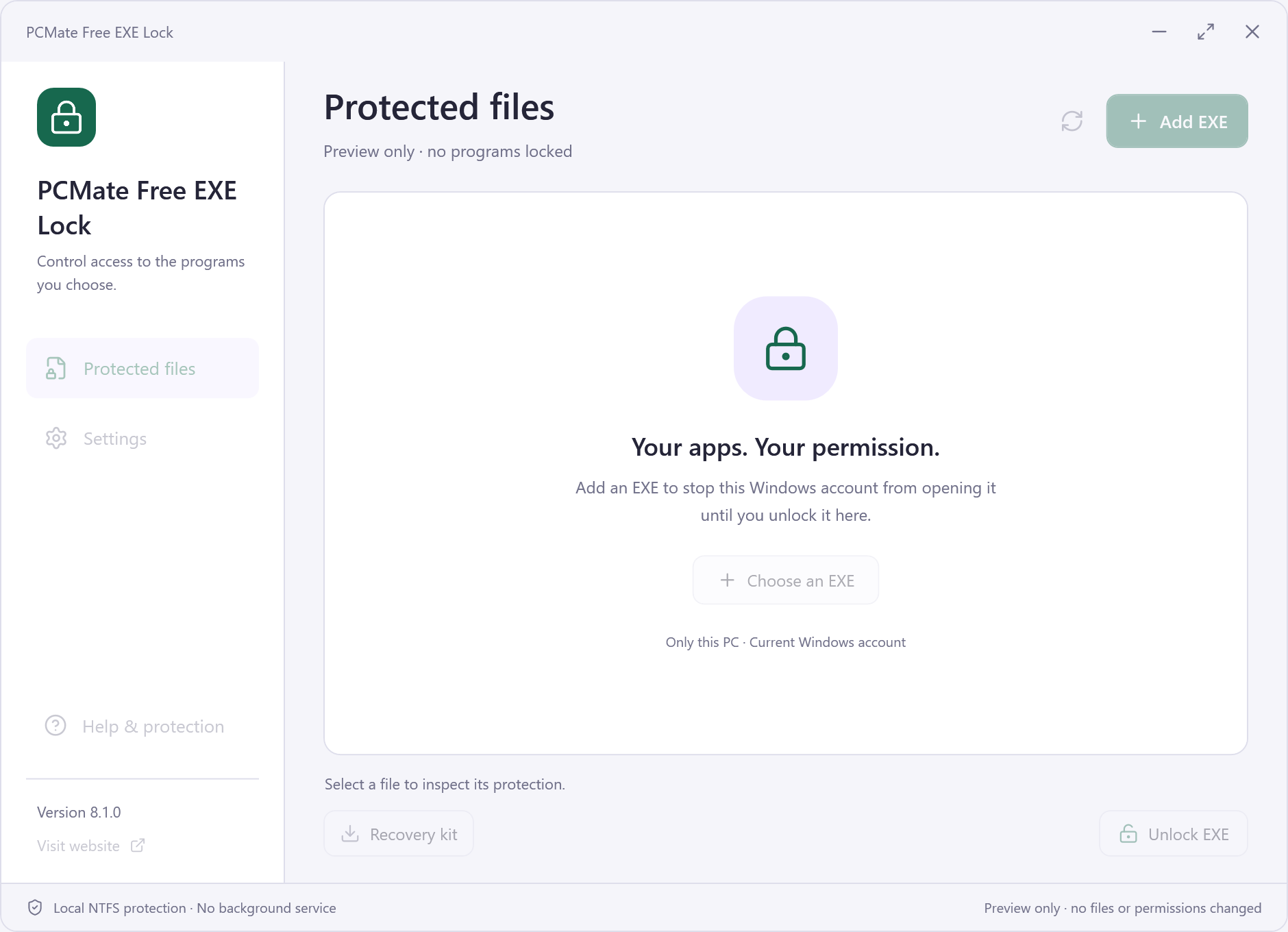
PCMate Free EXE Lock for Windows
Leave an occasionally used program installed without leaving its selected EXE available to open from your account. PCMate Free EXE Lock lets you choose the file, apply a permission lock and return through a password-protected manager when you need the application again.
100% free. No registration, subscription or activation.
Windows 10 & 11 · 64-bit
Choose a personal task
Start with one ordinary application you know. These tasks all use the same selected-file lock, so the program stays installed and the decision remains specific.
Keep a local utility available for later without allowing its chosen executable to launch now. Identify its real EXE rather than its desktop shortcut.
Choose the correct file →Unlock the original file from the manager when your task calls for it. Check the launch at its original path before putting the manager away.
Restore launch access →Save a new recovery kit when the protected list changes. Keep its export-time password and a usable manager copy with your records.
Keep recovery information →A lock changes access to the selected EXE. It leaves its contents and existing digital signature intact, so you can return to that same file after unlocking.
Use the full path to distinguish your intended program from its installer, a shortcut or another copy. The manager checks whether the selection is eligible.
Use your manager password when you want to restore launch access. Keep the manager and an up-to-date recovery kit available for the files on your protected list.
Choose an app
Perhaps you keep a photo utility or a local hobby application for occasional use. Removing it would also mean installing it again later. A selected-file lock provides a different option: keep the installation in place while making the particular executable unavailable to launch from your current Windows account. Begin with an application whose location and purpose you recognize.
Close that application, find its executable on local NTFS storage and inspect the folder and filename shown in PCMate. A desktop shortcut is a route to a program, so make sure you have identified the target EXE. Let the eligibility check confirm whether the file can be added before you apply the lock.
Use it again
When it is time to use the program, open PCMate Free EXE Lock and enter the manager password. Select the protected executable you need and use the unlock action. Return to the original location and check that the program opens. You do not need to replace its EXE with a newly generated file.
A launch attempt while the file is locked produces a Windows access-denied message. That message is the expected result of the permission restriction; the program itself does not display a new PCMate password window. Keeping this distinction clear makes the daily workflow easy to follow: manage access in PCMate, then use the application normally after unlocking.
Look after the list
A protected-file list can change as you add another application or release an older one. Export a current recovery kit after each change so that the saved information reflects the locks you are actually using. Retain the password that was used at export time, even if you later change how you organize your passwords.
Before removing the manager or clearing its working folder, unlock every protected file and check its original location. A simple personal note of the program name and why you locked it can also help when you revisit the list months later. Keep the kit and a usable manager copy accessible rather than storing your only copy inside an area you cannot reach.
PCMate Free EXE Lock workflow
Close the intended application and locate its executable on local storage. Select a file outside the lock manager's own folder, then check the full path before continuing.
Set up the manager password and add the chosen executable. Read the eligibility result carefully, and confirm the operation only when the displayed file is the one you intended to lock.
After changing the protected-file list, export its latest recovery kit. Keep the password used for that export and an available copy of the manager with your recovery information.
When you need the program again, open the manager and unlock it with your password. Restore every protected file before removing the manager, then check each original file path.
Questions about the product
No. It changes NTFS permissions for the selected executable and current Windows account. The EXE's bytes and digital signature remain unchanged. Trying to launch a locked file shows Windows access denied; enter the password in the manager to unlock it.
Choose an eligible executable on local NTFS storage, outside the manager's own folder. System files, security software, the manager itself, network locations and non-NTFS files are excluded. Check the displayed eligibility result rather than assuming that every installed application can be locked.
It does not terminate an existing instance. Close the intended application before locking its executable. The lock addresses launching that selected file from your current account, so an already-running copy continues to run until it is closed.
No. Its scope is the chosen file and current account. Another executable copy or another Windows account is outside that lock, and an administrator can change permissions. It is not a computer-wide application policy or an administrator-proof barrier.
The kit requires the password used when it was exported. It does not bypass that requirement. Keep a current export, its corresponding password and the manager available, and restore all protected files before uninstalling the application.
The included features are 100% free, with no registration, subscription or activation code. Use the signed Windows 10 or 11, 64-bit installer. Installation may show an optional RelevantKnowledge invitation; you can decline or skip it and still use PCMate Free EXE Lock.
PCMate Free EXE Lock
Download PCMate Free EXE Lock, choose one eligible local EXE and keep the recovery information for your lock. All included functions are free to use, without registration or an activation code.
100% free. No registration, subscription or activation.
Windows 10 & 11 · 64-bit
Windows setup: a signed installer for PCMate Free EXE Lock.
Portable ZIP: extract the entire folder and keep its runtime, icon, brand.ini and notices together.
Setup may present an optional RelevantKnowledge invitation. You can skip or decline it and use the application.