PCMate Free System Care · Version 0.13.1

Explore the tasks PCMate can do for your PC

See what each tool works on, follow the practical steps and check the result. The screenshots show the real PCMate workspaces used to reach these controls.

Download PCMate Free System CareDownload portable ZIP

100% free. No registration, subscription or activation.
Windows 10 & 11 · 64-bit

Choose a maintenance scan you can follow

PC Care brings the supported checks into one session. AI mode uses predefined rules and context to choose a scope; Manual mode lets you tick the check areas yourself.

Watch the module, current object, item counts and progress while it scans. Review findings by category before selecting eligible actions, or skip a module and request a stop when you need to investigate something first.

How to use it

  1. Choose AI or Manual mode.
  2. Review the selected areas and start the scan.
  3. Read each result category before confirming eligible actions.

Check the result: A recorded maintenance session separates observations from the changes you choose.

Scope and limits: The 16 check areas do not all offer automatic repair; AI mode is rule based, rather than a language-model service.

Download PCMate free →
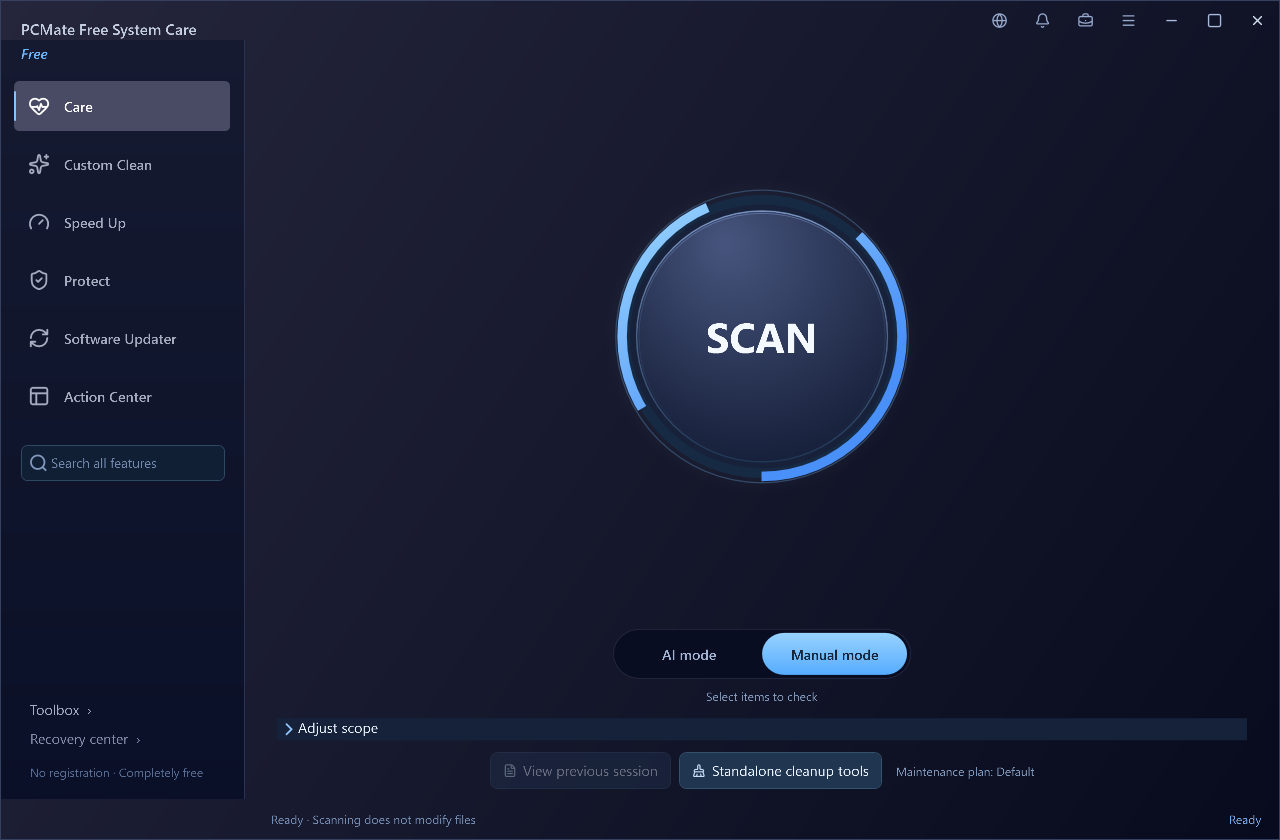
PCMate Free System Care Care workspace in the actual signed Windows application
PCMate Free System Care: the care workspace. This image identifies the starting area; it does not demonstrate a completed operation. Click to enlarge the original screenshot

Review temporary files before cleanup

See supported temporary files, browser caches and application caches with their paths, categories and sizes. PCMate also explains skipped candidates and lets you open a location when a filename needs context.

After you choose eligible items, the app rechecks scope, identity and content before moving them into its recovery area. You can export a report and later decide whether to restore retained copies or permanently remove them.

How to use it

  1. Scan the supported cache locations.
  2. Inspect paths, sizes and skipped items.
  3. Select candidates and confirm their recoverable cleanup.

Check the result: Selected qualifying files move into a recorded recovery stage.

Scope and limits: Quarantined copies still use disk space. Permanently deleting those copies requires a separate confirmation; browser history, cookies, saved passwords, chats and sync data are outside this cache workflow.

Download PCMate free →
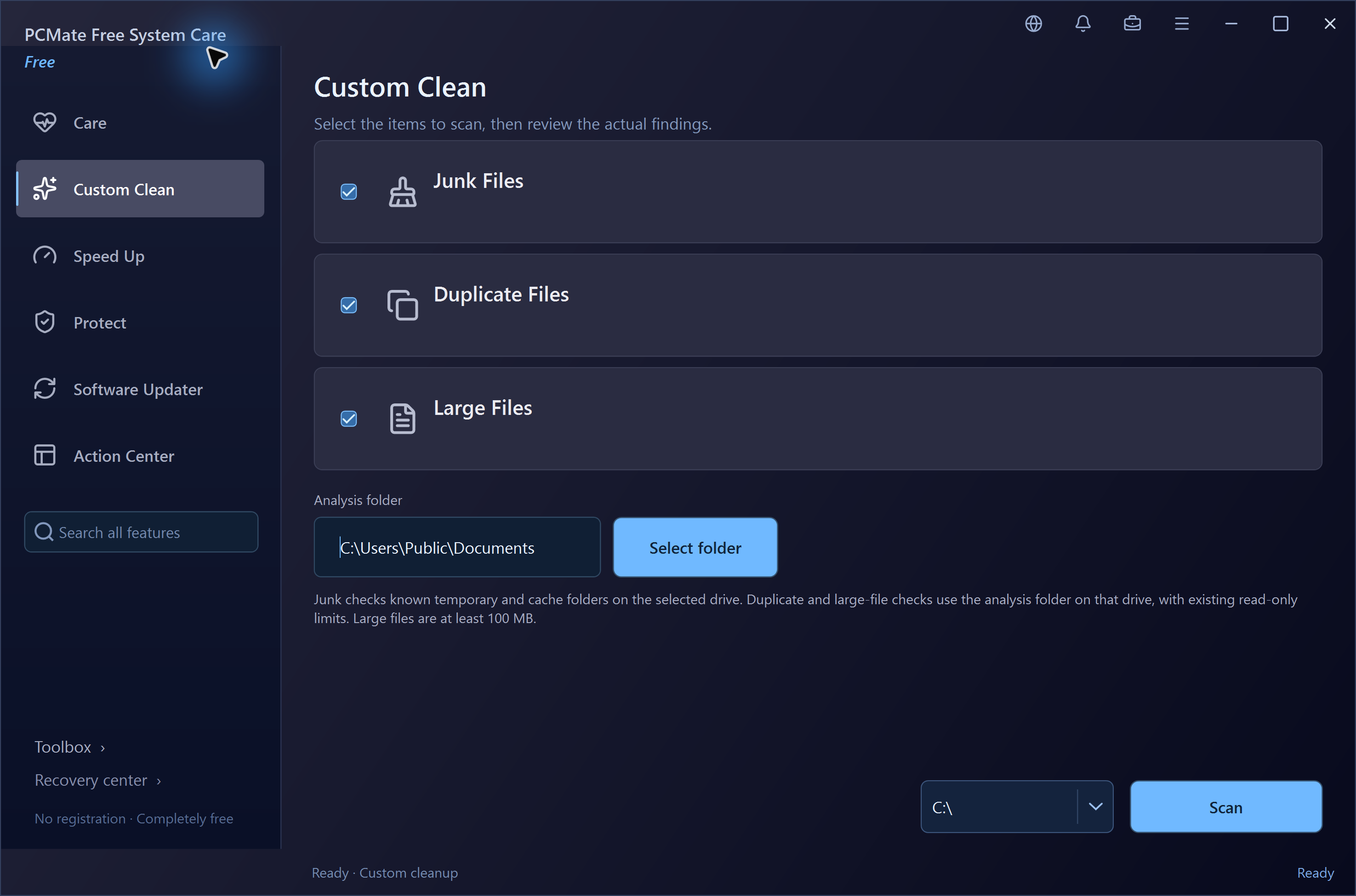
PCMate Free System Care Custom Clean in the real Windows application
PCMate Free System Care: the cleanup workspace. This image identifies the starting area; it does not demonstrate a completed operation. Click to enlarge the original screenshot

Review supported invalid registry references

Inspect supported program-path, COM/ActiveX, font and file-association references rather than applying a blanket registry fix. Original-rule named HKCU values can be selected individually when the current checks permit it.

Eligible changes preserve each original value's type and raw bytes. Ignore rules and the component-reference graph help explain the findings, while comparison checks protect restoration from silently overwriting a changed value.

How to use it

  1. Read the candidate and its supported scope.
  2. Choose an eligible named value after reviewing its backup.
  3. Check the saved record if you later need restoration.

Check the result: Supported value changes have a specific backup and comparison-based recovery path.

Scope and limits: Reference graphs do not authorize component deletion. This is not general HKLM cleanup or full COM unregistration, and the 405 target definitions are not a count of problems on your PC.

Download PCMate free →
PCMate Free System Care Custom Clean in the real Windows application
PCMate Free System Care: the cleanup workspace. This image identifies the starting area; it does not demonstrate a completed operation. Click to enlarge the original screenshot

Remove selected folders only when they remain empty

Choose an explicit directory scope and review the empty-folder candidates. PCMate rechecks deeper directories first before removing an eligible empty directory, rather than recursively deleting whatever it contains.

A batch record keeps the removed directory names available for supported recreation. The selected root is retained, and a folder that gains content before processing is not treated as an empty candidate.

How to use it

  1. Select the directory scope.
  2. Review the empty candidates before confirming.
  3. Check the batch record if a directory name needs restoring.

Check the result: Eligible empty directories are removed with a recorded name-level recovery path.

Scope and limits: No files are recursively deleted, and the chosen root is not removed. Recreating a folder does not guarantee its original timestamps or independent permissions.

Download PCMate free →
PCMate Free System Care Custom Clean in the real Windows application
PCMate Free System Care: the cleanup workspace. This image identifies the starting area; it does not demonstrate a completed operation. Click to enlarge the original screenshot

Review broken local shortcuts and repair known targets

PCMate checks local .lnk targets and distinguishes a confirmed missing target from one it cannot verify. Review that distinction before choosing a shortcut operation.

A supported broken shortcut can be quarantined, or you can select an existing local replacement target and save a backup before repair. The matching recovery record lets you revisit the original shortcut state where supported.

How to use it

  1. Inspect the local shortcut and target status.
  2. Choose quarantine or a known existing replacement target.
  3. Keep the corresponding backup and recovery record.

Check the result: A qualifying shortcut is handled using its checked target rather than its appearance alone.

Scope and limits: URL links, MSI-advertised shortcuts and uncertain targets are not automatically classified as broken.

Download PCMate free →
PCMate Free System Care Custom Clean in the real Windows application
PCMate Free System Care: the cleanup workspace. This image identifies the starting area; it does not demonstrate a completed operation. Click to enlarge the original screenshot

Find large files and compare matching content

Choose an analysis folder to find files of at least 100 MiB and inspect their paths and sizes. Duplicate analysis narrows candidates by size, then compares content hashes to group matching file data.

Open a result's location when you need to identify its purpose, or export a report to review later. The analyzer provides information so you can decide what to keep; it does not delete the listed files.

How to use it

  1. Choose the folder you want to analyze.
  2. Inspect large-file entries and content-matching groups.
  3. Open locations or export a report before deciding what to do.

Check the result: You get a read-only view of large files and supported duplicate-content candidates.

Scope and limits: Large or identical files may still be needed. File-count and hashing budgets can limit coverage; listed data is not an instruction to delete.

Download PCMate free →
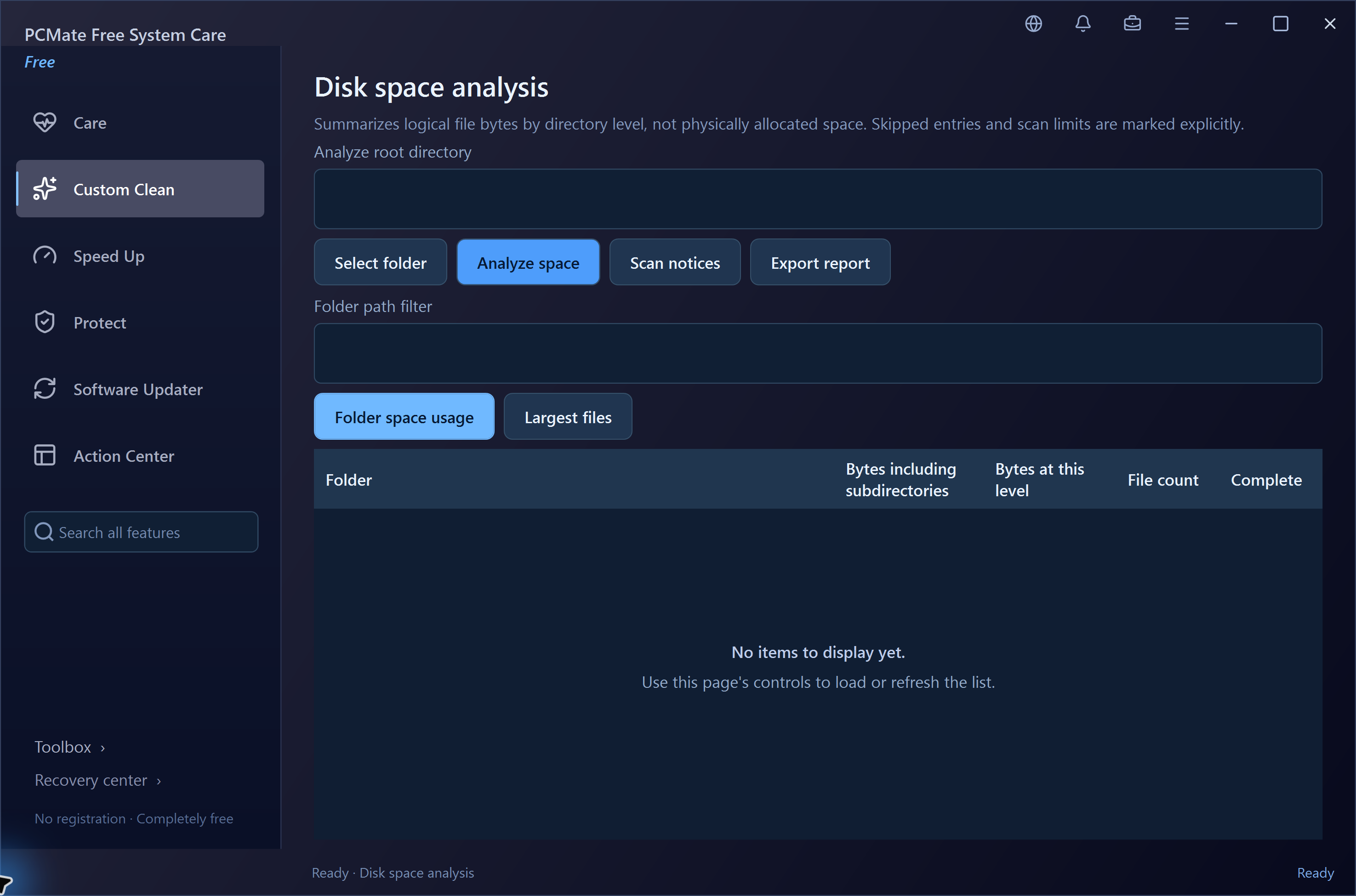
PCMate Free System Care Disk space analysis in the real Windows application
PCMate Free System Care: the storage workspace. This image identifies the starting area; it does not demonstrate a completed operation. Click to enlarge the original screenshot

See which folders contain the most file data

Disk Usage Analyzer adds file sizes through a selected directory hierarchy. PCMate shows larger folders and files so you can follow a storage question from the top-level folder to a more specific location.

Filter the results and export a report if you need a record. Read skipped entries and budget-truncation information alongside the totals, because an inaccessible or unexamined branch affects what the analysis represents.

How to use it

  1. Choose the folder to inspect.
  2. Follow the larger directories and file entries.
  3. Review skip notes and export the report if useful.

Check the result: You can identify the folders accounting for the largest logical file totals in the scanned scope.

Scope and limits: Logical byte totals are not physical allocated space. The analyzer reports storage use and does not clean the listed directories.

Download PCMate free →
PCMate Free System Care Disk space analysis in the real Windows application
PCMate Free System Care: the storage workspace. This image identifies the starting area; it does not demonstrate a completed operation. Click to enlarge the original screenshot

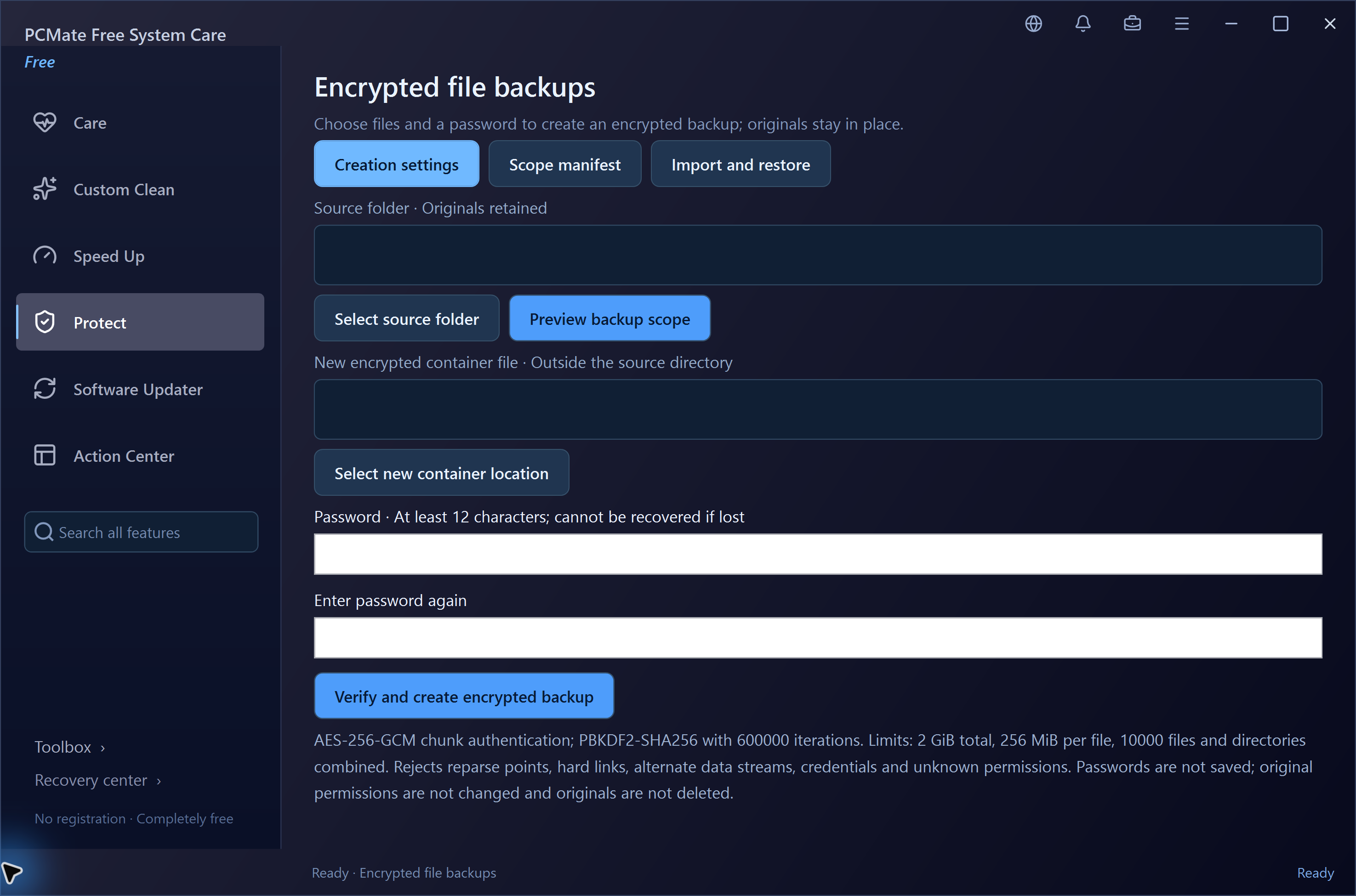
Create a password-encrypted copy of a folder

Choose a folder and make a .cbvault backup with a password. PCMate uses documented AES-256-GCM chunk authentication and PBKDF2-SHA256 password derivation, then verifies the created backup.

When you import the archive, verification comes before decryption into a new directory. Keep the original files and password somewhere appropriate: the backup is an additional protected copy, not a way to lock or hide the originals.

How to use it

  1. Select a folder within the supported size limits.
  2. Create and retain the password-protected .cbvault backup.
  3. Restore into a new folder and inspect the recovered files.

Check the result: You have a verified encrypted archive and a supported separate-location restore workflow.

Scope and limits: A forgotten password cannot be recovered. Limits are 2 GiB total, 256 MiB per file and 10,000 entries; original permissions and timestamps are not guaranteed on restore.

Download PCMate free →
PCMate Free System Care Encrypted file backups in the real Windows application
PCMate Free System Care: Actual encrypted-backup creation settings before choosing a source, destination or password. Click to enlarge the original screenshot

Restore files retained by supported cleanup

Cleanup Recovery Center lists this application's regular cleanup quarantine files and records. PCMate lets you select retained items for restoration, subject to path and conflict checks.

Read the record before choosing an action. If you no longer need a retained copy, a separate explicit confirmation can permanently remove it from the app-owned recovery area; you can also export the records.

How to use it

  1. Find the matching cleanup record.
  2. Select an item for a checked restore.
  3. Keep the copy or separately confirm its permanent deletion.

Check the result: You can revisit supported cleanup files still held by the application.

Scope and limits: This is not arbitrary deleted-file recovery or a full-PC backup. Permanently deleting retained copies cannot be undone.

Download PCMate free →
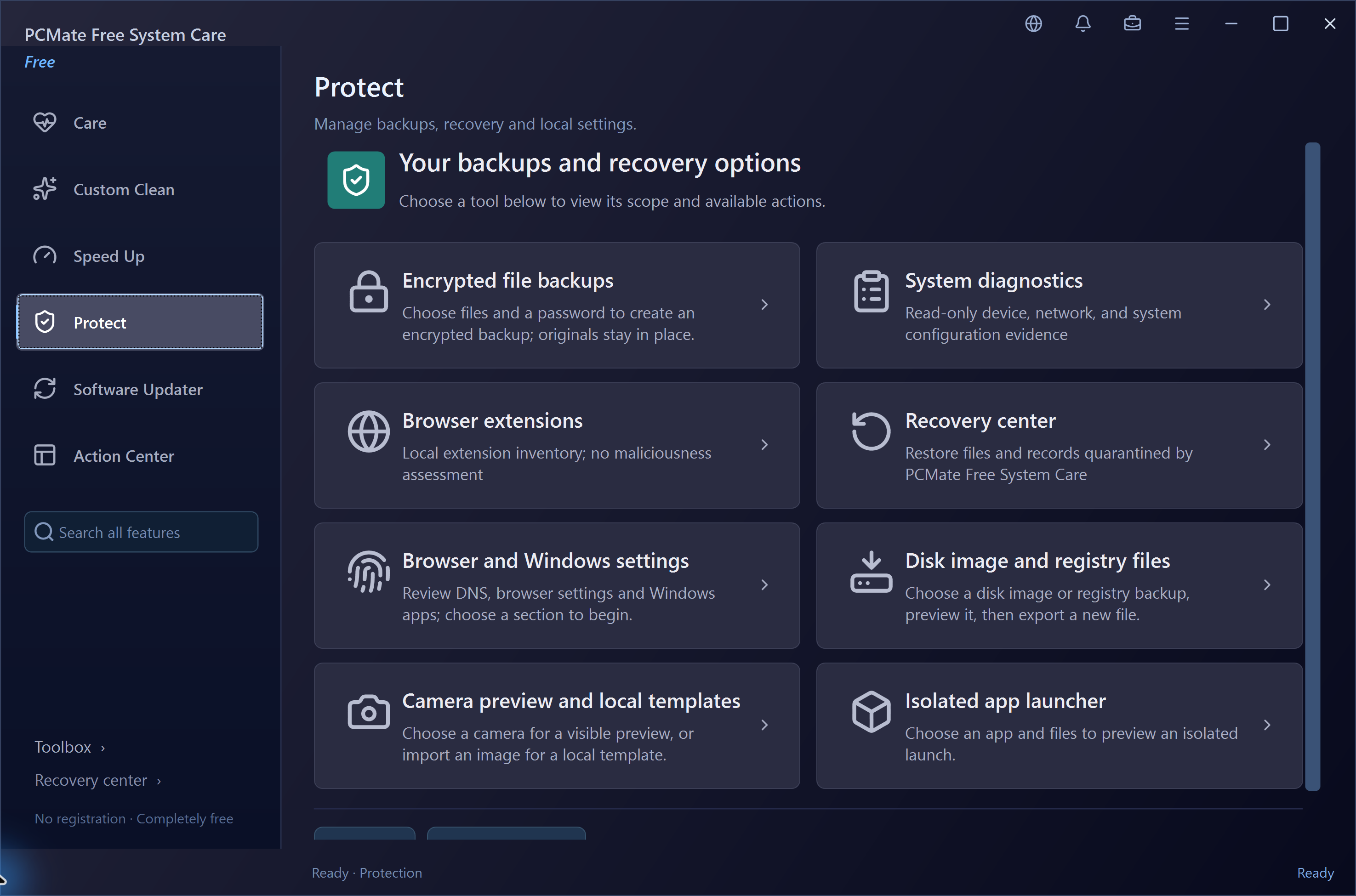
PCMate Free System Care Protect in the real Windows application
PCMate Free System Care: the protection workspace. This image identifies the starting area; it does not demonstrate a completed operation. Click to enlarge the original screenshot

Erase selected ordinary files or export the portable app

For an explicitly selected supported ordinary file, PCMate offers a single random overwrite, verification and deletion workflow with a result record. Check the full path and keep any version you still need before confirming this irreversible action.

A separate portable-export task writes the application into a ZIP with brand.ini, available native dependencies and notices, then verifies file digests. It does not include your personal scan, recovery or observation records.

How to use it

  1. Choose file erasure or portable export as a separate task.
  2. Inspect the file selection or package contents.
  3. Confirm the operation and review its result or verified ZIP.

Check the result: You receive a recorded file-erasure attempt or a checked portable application archive.

Scope and limits: Overwrite deletion cannot guarantee removal from SSD internals, TRIM, snapshots or other backups, and it does not wipe free space. Personal maintenance records are excluded from portable export.

Download PCMate free →
PCMate Free System Care Toolbox in the real Windows application
PCMate Free System Care: the maintenance workspace. This image identifies the starting area; it does not demonstrate a completed operation. Click to enlarge the original screenshot

Remove an app through its own uninstaller

Search registered desktop software and check its version and installation path before deciding which entry to remove. PCMate previews the registered uninstall command so you can match the action to the application.

The app starts the publisher's interactive uninstaller one at a time and records the attempt. A qualified pre-uninstall snapshot, when available, can support a separate later leftover review.

How to use it

  1. Identify the product and inspect its uninstall command.
  2. Capture an available pre-uninstall snapshot.
  3. Follow the publisher's uninstaller and review the attempt record.

Check the result: You have a recorded uninstall attempt and, where qualified, a starting point for leftover inspection.

Scope and limits: The publisher controls uninstall behavior and may request permission. A successful exit does not prove all leftovers were removed; the uninstall cannot be undone by this app.

Download PCMate free →
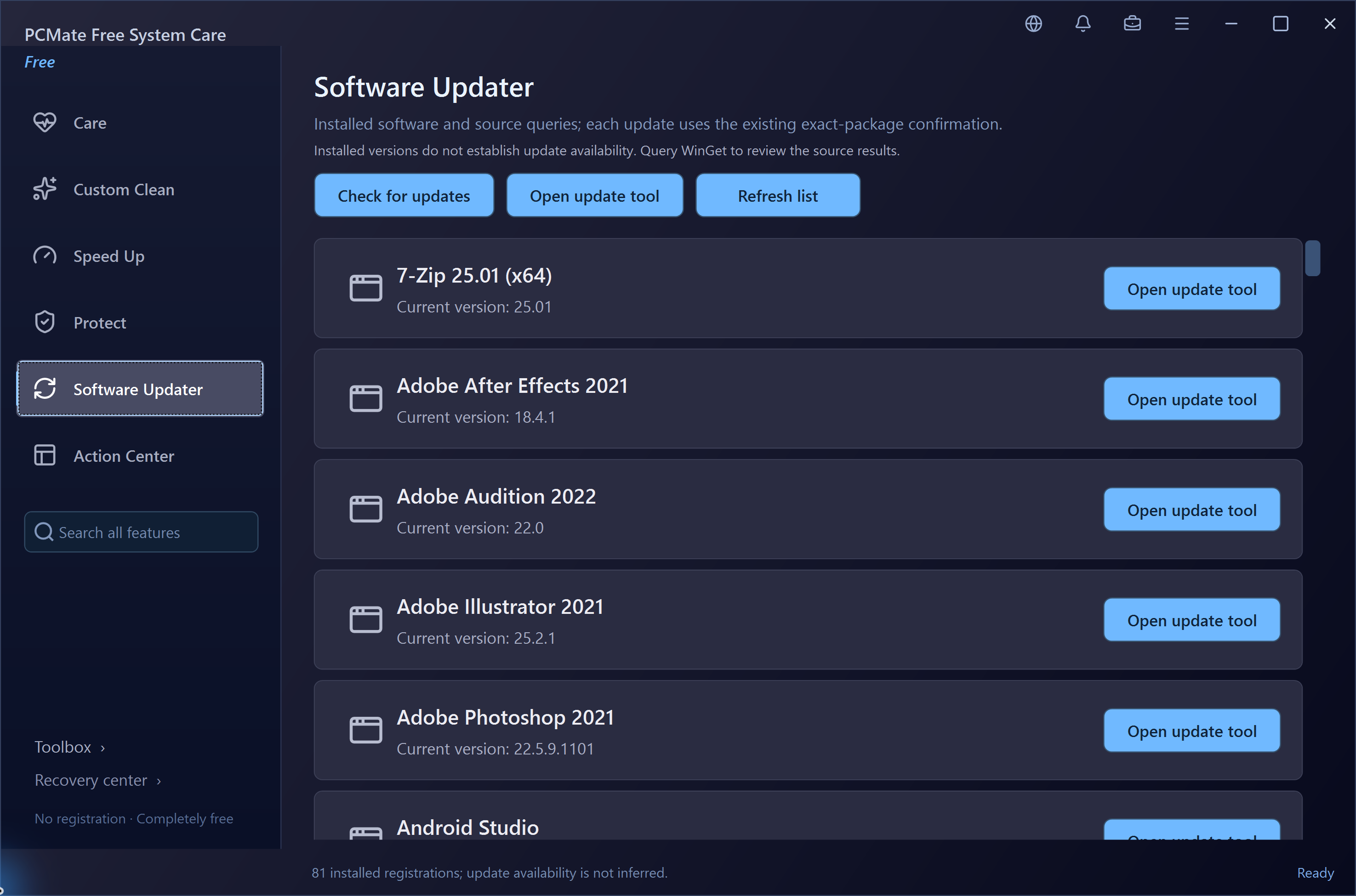
PCMate Free System Care Software Updater in the real Windows application
PCMate Free System Care: the software workspace. This image identifies the starting area; it does not demonstrate a completed operation. Click to enlarge the original screenshot

Review leftovers using a saved product snapshot

After a recorded uninstall, PCMate can compare a qualifying earlier product snapshot with the remaining registration and exclusive file locations. It checks identity and content instead of guessing ownership from a folder name.

Eligible selected files can move into recoverable quarantine, including across drives. The tool also rechecks product-scoped directories before removing those that are still empty, while preserving skip and recovery records.

How to use it

  1. Open a qualifying pre-uninstall snapshot.
  2. Inspect the remaining candidates and exclusions.
  3. Confirm eligible selections and retain their recovery record.

Check the result: Supported remnants have a specific product basis and a recorded recovery path.

Scope and limits: Without a qualified snapshot this review cannot authorize cleanup. Shared, changed, system or uncertain objects stay untouched; retained quarantine data still occupies space.

Download PCMate free →
PCMate Free System Care Software Updater in the real Windows application
PCMate Free System Care: the software workspace. This image identifies the starting area; it does not demonstrate a completed operation. Click to enlarge the original screenshot

Observe a selected installation scope

Choose a product directory and, optionally, an exclusive HKCU subtree to compare before and after an installation. PCMate records differences, directory events and supported process-identity information within the selected observation.

If encrypted original-content backup was enabled before the changes, eligible file content and registry values can be previewed for selective rollback. Imported installation logs are available for reading, not as permission to change the machine.

How to use it

  1. Define the product directory and optional exclusive HKCU scope.
  2. Enable original-content backup before starting observation if needed.
  3. Compare the session and preview only eligible rollback items.

Check the result: You get a scoped observation record and any supported rollback candidates backed up in advance.

Scope and limits: Native write tracing can be unavailable under the current permissions; check its capture status and missing-event counts. Observation does not prove complete installer ownership or roll back drivers, services and outside effects; content not backed up beforehand cannot be recreated.

Download PCMate free →
PCMate Free System Care Software Updater in the real Windows application
PCMate Free System Care: the software workspace. This image identifies the starting area; it does not demonstrate a completed operation. Click to enlarge the original screenshot

Move an eligible application folder between drives

Application Migration checks supported portable folders and a limited class of current-user, file-only MSI programs. PCMate previews exclusive directories, components and permissions before a cross-drive copy and content verification.

A checked migration retains an original backup and uses a directory junction to preserve the old path. Supported return and interruption-recovery operations help bring the latest files back before a registered program is repaired, updated or uninstalled.

How to use it

  1. Preview the folder's eligibility and destination.
  2. Confirm the checked cross-drive migration.
  3. Return the latest contents before registered-program maintenance.

Check the result: An eligible application has a recorded move, old-path junction and retained return path.

Scope and limits: Not every app can be moved. Shared components, services, drivers and unsupported installers are excluded; the original backup continues using source-disk space until separately verified and released.

Download PCMate free →
PCMate Free System Care Software Updater in the real Windows application
PCMate Free System Care: the software workspace. This image identifies the starting area; it does not demonstrate a completed operation. Click to enlarge the original screenshot

Find an uninstall attempt and its snapshot

Uninstall History keeps the attempts initiated through PCMate, with the product, time, recorded outcome and associated snapshot. Open an entry when you need to understand what you asked the application to run.

The detail view and export let you retain the record or locate a qualifying snapshot for a later review. A history item records an attempt rather than guaranteeing that all of the product's files disappeared.

How to use it

  1. Locate the product's uninstall attempt.
  2. Read its time, result and snapshot association.
  3. Open details or export the record for reference.

Check the result: You can revisit the uninstall activity started by this application.

Scope and limits: This is not Windows-wide software history and it does not undo a publisher's uninstall.

Download PCMate free →
PCMate Free System Care Software Updater in the real Windows application
PCMate Free System Care: the software workspace. This image identifies the starting area; it does not demonstrate a completed operation. Click to enlarge the original screenshot

Check registered app paths and uninstaller availability

App Path & Registration Checks reads software registration and checks whether the recorded locations and uninstallers exist. You can also start from a file or directory to locate its registered product.

Inspect the directory access-control information, export the findings or move to the proper uninstall flow. These are specific registration and path observations, useful before deciding how to handle a particular installed app.

How to use it

  1. Locate the registered product or select its file path.
  2. Read the path, uninstaller and directory information.
  3. Export findings or open the proper uninstall entry.

Check the result: You have concrete registration and location evidence for the selected product.

Scope and limits: An existing path does not prove that an app is healthy. This tool does not score performance, malware risk or effective user permissions.

Download PCMate free →
PCMate Free System Care Software Updater in the real Windows application
PCMate Free System Care: the software workspace. This image identifies the starting area; it does not demonstrate a completed operation. Click to enlarge the original screenshot

Check one application update through WinGet

Software Updater detects the official WinGet tool and queries available package information online. PCMate shows the exact package details so you can identify the update rather than inferring availability from an installed name.

After your confirmation, it runs one exact package's interactive update and records the attempt. Follow the publisher's installer and read its result before deciding whether another update is appropriate.

How to use it

  1. Query WinGet's available updates.
  2. Inspect the exact package identity and details.
  3. Confirm one interactive update and review the record.

Check the result: An identified package has a specific update attempt recorded by the application.

Scope and limits: WinGet, network access and the publisher installer are required. There is no update-all command, update rollback or independent post-install version guarantee.

Download PCMate free →
PCMate Free System Care Software Updater in the real Windows application
PCMate Free System Care: the software workspace. This image identifies the starting area; it does not demonstrate a completed operation. Click to enlarge the original screenshot

Adjust supported app priority and startup entries

App Background & Startup Control checks real process identity before lowering the CPU scheduling priority of a supported user process. PCMate can restore the original priority rather than claiming to unload the app's memory.

For a supported product, it can manage qualifying HKCU Run startup entries and inspect a missing uninstaller with official-help navigation. Each action remains tied to an identified process or product registration.

How to use it

  1. Identify the process or product.
  2. Preview a supported priority or startup change.
  3. Confirm the action and retain its restore record.

Check the result: An eligible scheduling or startup setting can be adjusted for a known application.

Scope and limits: Lower priority does not pause the process, free RAM or release file locks. Official help links do not automatically download and run vendor removal tools.

Download PCMate free →
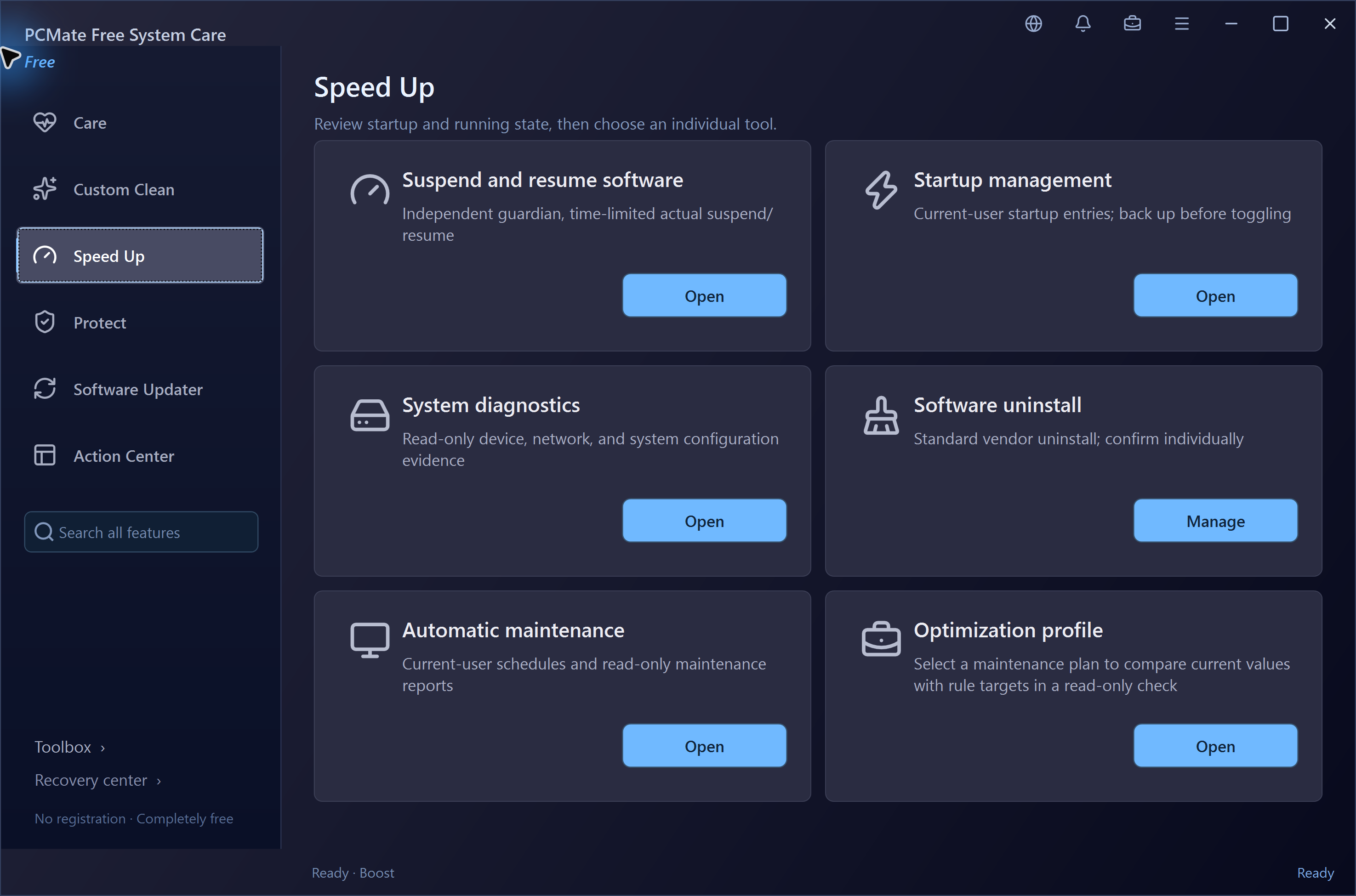
PCMate Free System Care Speed Up in the real Windows application
PCMate Free System Care: the performance workspace. This image identifies the starting area; it does not demonstrate a completed operation. Click to enlarge the original screenshot

Park an eligible exclusive app folder with a return path

Select an explicitly exclusive ordinary program directory and review its scope and related processes. PCMate can move a qualifying folder as a whole to a unique same-drive fallback location after confirmation.

The resulting record provides a supported restore path. This operation parks the folder rather than pretending to run the product's installer or remove every registration and component associated with it.

How to use it

  1. Choose the exclusive program folder.
  2. Inspect the scope and process preview.
  3. Confirm eligible parking and keep the restore record.

Check the result: A qualifying directory has a recorded fallback location for a supported return.

Scope and limits: MSI, shared, system and special-file directories are rejected. Parking does not free the file bytes or remove registration, services, tasks and outside leftovers.

Download PCMate free →
PCMate Free System Care Software Updater in the real Windows application
PCMate Free System Care: the software workspace. This image identifies the starting area; it does not demonstrate a completed operation. Click to enlarge the original screenshot

Choose which supported apps start at sign-in

Startup Manager lists eligible current-user Run entries and Startup files so you can identify the apps that launch with your account. Keep entries you recognize and inspect an unfamiliar path before changing it.

For supported items, PCMate saves a backup before disabling the entry and offers restoration through its record. A Windows Startup settings link is available when you need the operating system's own controls.

How to use it

  1. Read the app name and launch path.
  2. Back up and disable a supported current-user item.
  3. Restore it from the record if you want it at sign-in again.

Check the result: The selected entry's startup state changes without uninstalling its application.

Scope and limits: Machine-level entries may be read-only. This is not complete service or scheduled-task management, and no boot-time reduction is guaranteed.

Download PCMate free →
PCMate Free System Care Speed Up in the real Windows application
PCMate Free System Care: the performance workspace. This image identifies the starting area; it does not demonstrate a completed operation. Click to enlarge the original screenshot

Schedule a scan report or a non-forced shutdown

Create a one-time or daily task for the current Windows user. Scheduled maintenance performs the supported read-only scan and saves a report, leaving cleanup decisions for you to review later.

The same area can schedule a shutdown that does not force-close applications. View or cancel your tasks, and rebuild a maintenance schedule if the program executable is moved.

How to use it

  1. Choose a scan-report or shutdown task.
  2. Set the current-user schedule.
  3. Review the saved report or cancel a future task when needed.

Check the result: The routine can produce a maintenance report without automatically applying cleanup.

Scope and limits: The user must be signed in. Tasks do not wake the PC or catch up missed runs, and cancellation cannot undo an action that already began.

Download PCMate free →
PCMate Free System Care Speed Up in the real Windows application
PCMate Free System Care: the performance workspace. This image identifies the starting area; it does not demonstrate a completed operation. Click to enlarge the original screenshot

Review supported classic right-click entries

Inspect the traditional static context-menu entries visible to the tool. PCMate can back up and disable qualifying simple current-user items, letting you adjust a supported entry without running the command it describes.

The app's own records provide restoration for the supported changes. Read each item's scope before confirming: not everything displayed in a Windows right-click menu belongs to the same type of registration.

How to use it

  1. Inspect the classic menu entry and its scope.
  2. Back up and disable a supported current-user item.
  3. Use its saved record if you want to restore it.

Check the result: A qualifying static entry has a saved original state and a recorded disable action.

Scope and limits: Modern Windows 11 menus, complex COM handlers, cascades, defaults and machine-wide objects are not comprehensively managed.

Download PCMate free →
PCMate Free System Care Speed Up in the real Windows application
PCMate Free System Care: the performance workspace. This image identifies the starting area; it does not demonstrate a completed operation. Click to enlarge the original screenshot

Adjust supported animation and power preferences

Inspect three supported Windows sign-in-session animation preferences and the power plans already present on your computer. PCMate lets you preview an individual preference change before you choose to apply it.

The original supported value is saved for comparison-based restoration. You can also switch to an existing power plan, keeping the task tied to a visible setting rather than a promised speed multiplier.

How to use it

  1. Read the current animation or power setting.
  2. Preview and confirm one supported change.
  3. Use the original-value record if an eligible restore is needed.

Check the result: You control a supported preference or an existing power-plan selection.

Scope and limits: Some animation preferences apply only to the current sign-in session. The tool does not create, delete or reset power plans and does not guarantee a performance gain.

Download PCMate free →
PCMate Free System Care Speed Up in the real Windows application
PCMate Free System Care: the performance workspace. This image identifies the starting area; it does not demonstrate a completed operation. Click to enlarge the original screenshot

Compare an optimization profile before applying changes

Explore profiles such as Default, Daily, Best Performance, Office and Server. PCMate compares current values with the selected targets and shows the reason, location and source for each supported recommendation.

You can export the comparison or choose a profile for the next maintenance scan. Profile selection itself is mainly an inspection step; supported current-user configuration changes have separate backup, apply and recovery stages in the maintenance flow.

How to use it

  1. Choose a profile to inspect.
  2. Compare current values, targets and reasons.
  3. Export the view or use the profile for the next scan.

Check the result: You get a concrete profile comparison rather than an unexplained global tune-up.

Scope and limits: Selecting a profile does not immediately batch-change the system, disable all services or guarantee faster operation.

Download PCMate free →
PCMate Free System Care Speed Up in the real Windows application
PCMate Free System Care: the performance workspace. This image identifies the starting area; it does not demonstrate a completed operation. Click to enlarge the original screenshot

Collect specific Windows diagnostic information

Inspect network interfaces, PnP devices, installed driver properties and supported Windows configuration. PCMate keeps source and time information alongside raw status so you can identify what each observation describes.

Export the information when you need a local report. Any offered diagnostic operation requires a specific target selection, keeping a troubleshooting step separate from merely reading a device or driver entry.

How to use it

  1. Choose the information or target to inspect.
  2. Read its source, timestamp and raw status.
  3. Export the report or review a supported target-specific diagnostic.

Check the result: You have concrete system observations to use in a troubleshooting task.

Scope and limits: Driver version or date is not an outdated-driver verdict. The tool does not automatically update drivers, patch vulnerabilities or certify the PC's security.

Download PCMate free →
PCMate Free System Care Toolbox in the real Windows application
PCMate Free System Care: the maintenance workspace. This image identifies the starting area; it does not demonstrate a completed operation. Click to enlarge the original screenshot

Run a read-only disk check or request a restore point

Choose a fixed volume and confirm a CHKDSK run without repair switches. PCMate shows the command output so you can read what Windows reported without scheduling a disk-repair operation.

The restore-point view lists available entries and lets you preview a request to create one. Creation depends on Windows permissions and system conditions, and its attempt result is recorded rather than assumed successful.

How to use it

  1. Select a volume or inspect restore points.
  2. Preview the read-only check or restore-point request.
  3. Confirm it and read the Windows output or recorded result.

Check the result: You receive a disk-check report or a specific restore-point creation attempt.

Scope and limits: The tool does not automatically repair disks, schedule boot-time repair or perform a system restore. Restore-point conditions and Windows frequency limits still apply.

Download PCMate free →
PCMate Free System Care Toolbox in the real Windows application
PCMate Free System Care: the maintenance workspace. This image identifies the starting area; it does not demonstrate a completed operation. Click to enlarge the original screenshot

Check CPU, memory and process working sets

System Monitor samples overall CPU and physical memory about every three seconds. PCMate also shows uptime and disk capacity, giving you a current view before choosing another maintenance task.

Inspect the process list ordered by working set and read the associated reports. A large working set identifies memory currently associated with a process; it does not by itself tell you to close the application or promise that a change will free memory.

How to use it

  1. Open the monitor and read the current sample.
  2. Inspect process working sets and system totals.
  3. Keep a relevant report before choosing a separate action.

Check the result: You can compare current system readings with the applications using working-set memory.

Scope and limits: No temperature, fan, process-termination, intelligent RAM-release or per-process network-speed control is provided; overall CPU is not per-process CPU attribution.

Download PCMate free →
PCMate Free System Care Speed Up in the real Windows application
PCMate Free System Care: the performance workspace. This image identifies the starting area; it does not demonstrate a completed operation. Click to enlarge the original screenshot

Read your adapter and connection settings

Inspect network adapters, their status, addresses, gateways, DNS servers and reported link speeds. PCMate brings these observations together when you need to identify the interface connected to your network.

Export the information for reference or open Windows network settings for the operating system's own controls. Reading the adapter details is separate from changing DNS or diagnosing an internet-service problem.

How to use it

  1. Choose the adapter to inspect.
  2. Read its addresses, gateway, DNS and link speed.
  3. Export the information or open Windows network settings.

Check the result: You have a concrete record of the selected interface's reported configuration.

Scope and limits: Link speed is not an internet-bandwidth test. The information view does not guarantee faster network access.

Download PCMate free →
PCMate Free System Care Speed Up in the real Windows application
PCMate Free System Care: the performance workspace. This image identifies the starting area; it does not demonstrate a completed operation. Click to enlarge the original screenshot

Open the appropriate Windows maintenance tool

PCMate gathers entry points for Storage, Disk Cleanup, Optimize Drives, Power, Default Apps, Startup, Services, Task Scheduler, Event Viewer, Windows Update and other supported system tools.

Choose the Windows utility that matches the job, then return to the app and refresh local information when needed. The operating-system utility retains its own dialogs, permissions and maintenance behavior.

How to use it

  1. Choose the Windows utility for the task.
  2. Follow that utility's own controls.
  3. Return and refresh the related local information.

Check the result: You can reach the relevant Windows tool from a single maintenance workspace.

Scope and limits: These shortcuts launch Windows-owned functions. Their maintenance operations are not all independently implemented by PCMate.

Download PCMate free →
PCMate Free System Care Toolbox in the real Windows application
PCMate Free System Care: the maintenance workspace. This image identifies the starting area; it does not demonstrate a completed operation. Click to enlarge the original screenshot

See the extensions in supported browser profiles

Inspect the extension inventory read from supported browsers' regular profile configuration. PCMate lists identifying details such as name, version, profile, extension ID and installation path.

Open an extension's location or export the inventory when you want to investigate a particular entry. This view helps you identify what is recorded in the browser configuration before using the browser's own management controls.

How to use it

  1. Choose a supported browser profile.
  2. Read an extension's name, ID, version and path.
  3. Open its location or export the inventory.

Check the result: You get a specific extension list for the supported profile scope.

Scope and limits: An inventory row is not a malware verdict or proof that the extension is enabled. The tool does not automatically disable, uninstall or block extensions.

Download PCMate free →
PCMate Free System Care Protect in the real Windows application
PCMate Free System Care: the protection workspace. This image identifies the starting area; it does not demonstrate a completed operation. Click to enlarge the original screenshot

Inspect selected browser and Windows settings

Save a DNS-address baseline for read-only comparison, or back up and edit supported Chrome, Edge and Brave homepage/startup URL fields. PCMate provides a restore path for those supported browser-setting changes.

The same evidence area can show current-user recent camera-use records and preview removal of a supported exact current-user AppX package. Each task has its own scope and confirmation rather than being one broad privacy-cleaning command.

How to use it

  1. Choose a specific settings or evidence task.
  2. Inspect the baseline, URL field, camera record or exact AppX package.
  3. Back up and confirm only the supported change you intend.

Check the result: You get a scoped settings comparison, evidence view or explicitly selected operation.

Scope and limits: A DNS baseline is not active protection. Browser URL controls do not erase history, cookies or passwords; camera records are not complete live monitoring, and AppX removal cannot be undone through cleanup recovery.

Download PCMate free →
PCMate Free System Care Protect in the real Windows application
PCMate Free System Care: the protection workspace. This image identifies the starting area; it does not demonstrate a completed operation. Click to enlarge the original screenshot

Preview and back up a supported DNS change

Choose a supported interface and inspect a public or custom static DNS configuration before applying it. PCMate backs up the original mode so an eligible comparison-based restore can return the earlier configuration.

Active drift monitoring requires a separate explicit opt-in and runs only while the app is open. You can stop it, review its activity and restore the original settings where the current checks allow.

How to use it

  1. Verify the interface and DNS preview.
  2. Back up and confirm the static DNS change.
  3. Optionally enable in-app monitoring, then stop or restore when appropriate.

Check the result: A supported interface has a reviewed DNS configuration and saved original state.

Scope and limits: VPN, policy, DoH and all adapter types are not covered. Monitoring stops on exit and does not automatically resume after restart; it is not tamper-proof protection or a VPN.

Download PCMate free →
PCMate Free System Care Protect in the real Windows application
PCMate Free System Care: the protection workspace. This image identifies the starting area; it does not demonstrate a completed operation. Click to enlarge the original screenshot

Inspect an offline image or registry-file copy

Offline recovery reads supported deleted records in an NTFS raw partition image and previews eligible candidates before exporting them to new files. PCMate does not scan the live volume as part of this image workflow.

A separate offline .hive task rewrites a supported working copy into a new file and compares content digests. Keeping input and output separate makes this an offline file task rather than an online system-registry repair.

How to use it

  1. Choose a supported raw partition image or working .hive copy.
  2. Inspect candidates or the proposed file rewrite.
  3. Export to new output and review its content or digest comparison.

Check the result: The task produces a separate recovery candidate file or rewritten offline hive copy.

Scope and limits: Arbitrary disk images, VHD, encryption and compression are not supported, and recovered content may be incomplete. Hive rewriting does not replace the live registry or guarantee a smaller file.

Download PCMate free →
PCMate Free System Care Toolbox in the real Windows application
PCMate Free System Care: the maintenance workspace. This image identifies the starting area; it does not demonstrate a completed operation. Click to enlarge the original screenshot

Pause one supported process for a bounded time

Verify the exact identity of a supported user process before temporarily pausing it. PCMate offers leases of 15, 30, 60 or 120 seconds, an independent watchdog and an immediate resume control.

Keep the task short and read the audit record afterward. Pausing is different from a priority change or ending an app: the process stays in memory, and its held file locks are not released.

How to use it

  1. Identify an eligible user process.
  2. Choose the short pause lease and confirm.
  3. Resume immediately if needed and inspect the record.

Check the result: A supported single-process pause has a bounded lease and explicit wake path.

Scope and limits: Critical, system, service and related processes are excluded. Pausing can affect network and inter-process work; it is not hibernation or a way to free memory or file locks.

Download PCMate free →
PCMate Free System Care Speed Up in the real Windows application
PCMate Free System Care: the performance workspace. This image identifies the starting area; it does not demonstrate a completed operation. Click to enlarge the original screenshot

Preview a chosen camera and manage local image records

Choose a camera explicitly to show a visible preview. PCMate can import an image and let you select a region for a local texture template, then compare a later selected region with that stored template.

A separately confirmed bounded timed-capture task saves photos encrypted for the current Windows user using DPAPI. You can inspect or delete those records, and preview/capture stops when the page changes, the app is minimized, the session locks or the app closes.

How to use it

  1. Select the camera for visible preview.
  2. Create or compare a manually selected local template.
  3. Confirm any bounded capture separately and manage its records.

Check the result: The task produces an explicit preview, local template comparison or encrypted photo record.

Scope and limits: This does not record the microphone or authenticate a person's identity. There is no liveness detection, Face ID or unattended background anti-theft guarantee.

Download PCMate free →
PCMate Free System Care Toolbox in the real Windows application
PCMate Free System Care: the maintenance workspace. This image identifies the starting area; it does not demonstrate a completed operation. Click to enlarge the original screenshot

Launch a supported standalone EXE in a restricted container

Inspect an eligible standalone native Win32 single-file EXE before explicitly launching it through PCMate's restricted AppContainer. The launcher has no network or device capabilities, which can prevent an otherwise valid app from working.

Read the session records for the private-file access probe, Job process constraints, stopping the session and profile cleanup. Keep this bounded launch separate from ordinary apps you started elsewhere.

How to use it

  1. Choose an eligible native single-file EXE.
  2. Read the restricted-launch preview.
  3. Confirm the session, then stop it and inspect its records.

Check the result: A supported application runs within the launcher session's documented restrictions.

Scope and limits: This is not a full virtual machine or universal malware protection. .NET apps, scripts, arguments, sidecar dependencies and arbitrary software are unsupported; normal processes outside the session are not restricted.

Download PCMate free →
PCMate Free System Care Toolbox in the real Windows application
PCMate Free System Care: the maintenance workspace. This image identifies the starting area; it does not demonstrate a completed operation. Click to enlarge the original screenshot

Feature scope

Read feature support and limits

Read what each tool supports before using it

Available Features & Scope explains the application's capabilities, support state and limits. PCMate keeps this reference inside the product so you can check a tool's intended boundary before choosing a task.

Use it when a feature name sounds broader than the action offered on your computer. Read-only inspection, supported changes and integrations with Windows or third-party tools have different behavior and should be understood separately.

How to use it

  1. Find the capability you are considering.
  2. Read its support state and scope.
  3. Choose the corresponding tool only if it fits the task.

Check the result: You can match the job to the documented capability before taking action.

Scope and limits: This reference is a transparency view, not another cleanup, repair or security engine.

Download PCMate free →
PCMate Free System Care Toolbox in the real Windows application
PCMate Free System Care: the maintenance workspace. This image identifies the starting area; it does not demonstrate a completed operation. Click to enlarge the original screenshot

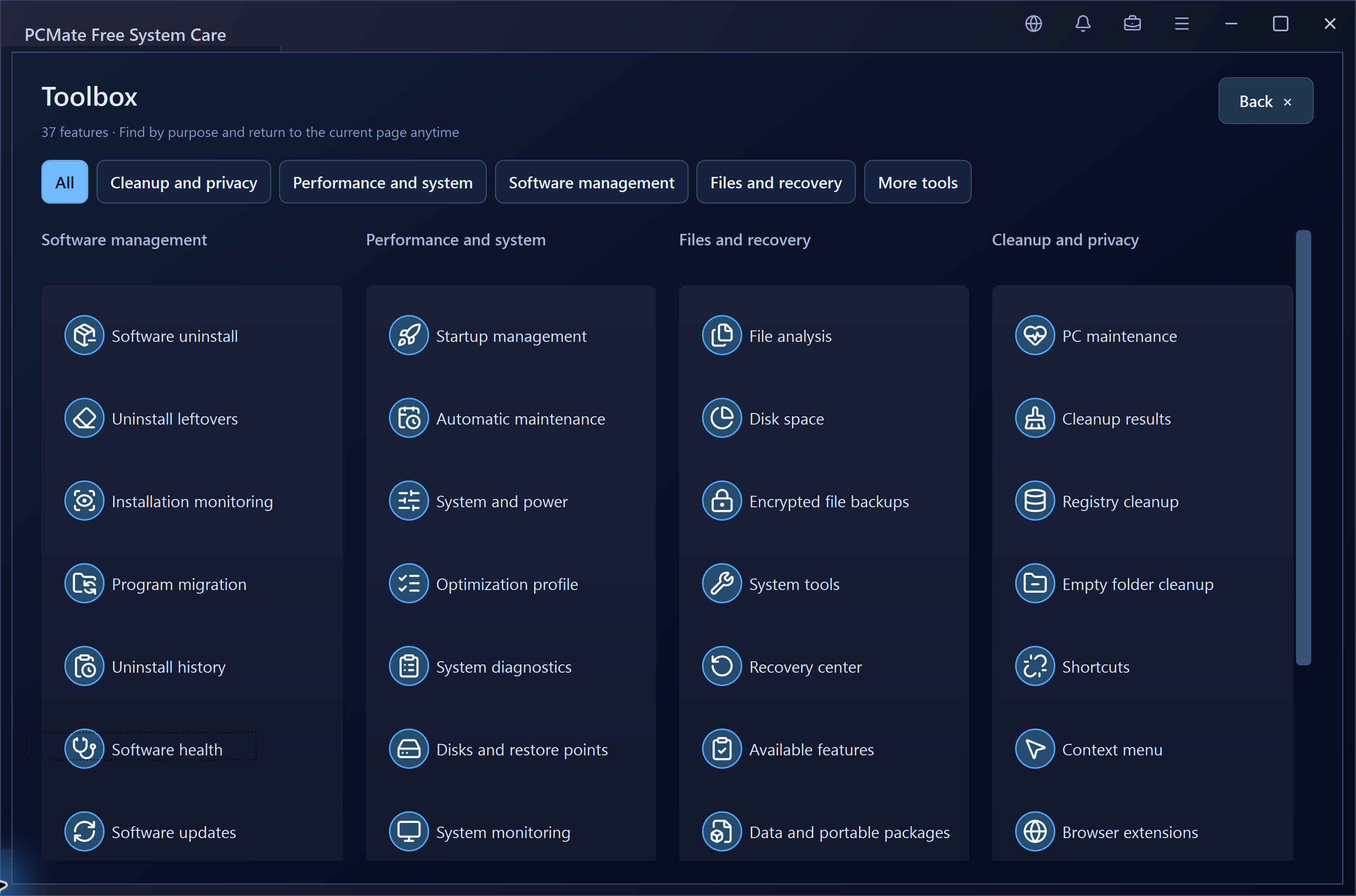
Use the complete PCMate Free System Care toolkit free

Choose an illustrated walkthrough for a focused task, or download the full Windows application with all 37 listed tools. No account or activation code is required.

Open the practical task guides →
Download PCMate Free System CareDownload portable ZIP

100% free. No registration, subscription or activation.
Windows 10 & 11 · 64-bit