How to Uninstall Unused Programs on Windows
Remove a desktop app on Windows 10 or 11 through its registered uninstaller, then check whether the app and its files are still present.
Download PCMate Free System Care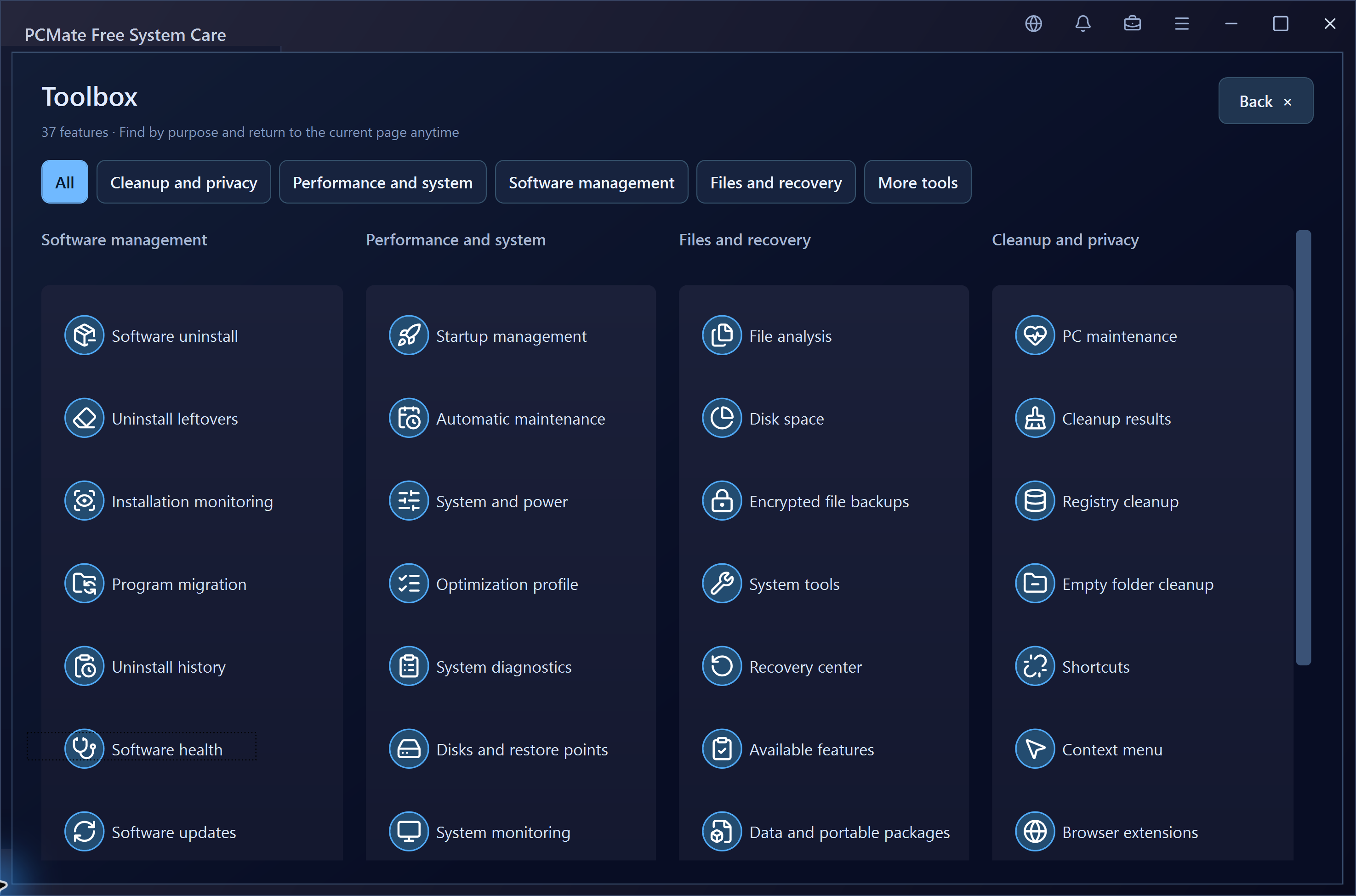
Choose one desktop program you recognize
Close the app and keep any projects, presets or other data you still need. If several entries have similar names, compare their publisher, version and installation path before choosing one. Keep shared components and unfamiliar entries in place while you identify what uses them.
Use Software Uninstaller in PCMate
- Open Toolbox → Software uninstall and select the installed desktop program. Review the registered uninstall command to check that it belongs to the selected app.
- If you intend to review leftovers and PCMate offers a qualified pre-uninstall snapshot, save it before starting the uninstaller.
- Launch the registered uninstaller and follow the publisher’s prompts. Read any choices about retaining settings or user data before confirming.
- Check PCMate’s uninstall attempt record and refresh the installed-app list. If the publisher asks you to restart, check the list again afterward.
Uninstall from Windows Settings
Windows 11: Open Settings → Apps → Installed apps, find the program and choose Uninstall from its menu. Windows 10: Open Settings → Apps → Apps & features, select the program and choose Uninstall. For a desktop program you cannot remove there, check Control Panel → Programs → Programs and Features.
Check any folders left behind
A folder may contain presets or personal projects kept by the publisher. If you saved a qualifying snapshot, review the matched leftovers using that earlier record. PCMate records the removal attempt. The publisher controls the uninstall and PCMate cannot roll it back.