How to Choose Which Apps Start With Windows
Review apps that open at sign-in, switch off one you recognize and check how to restore it if you want it back.
Download PCMate Free System Care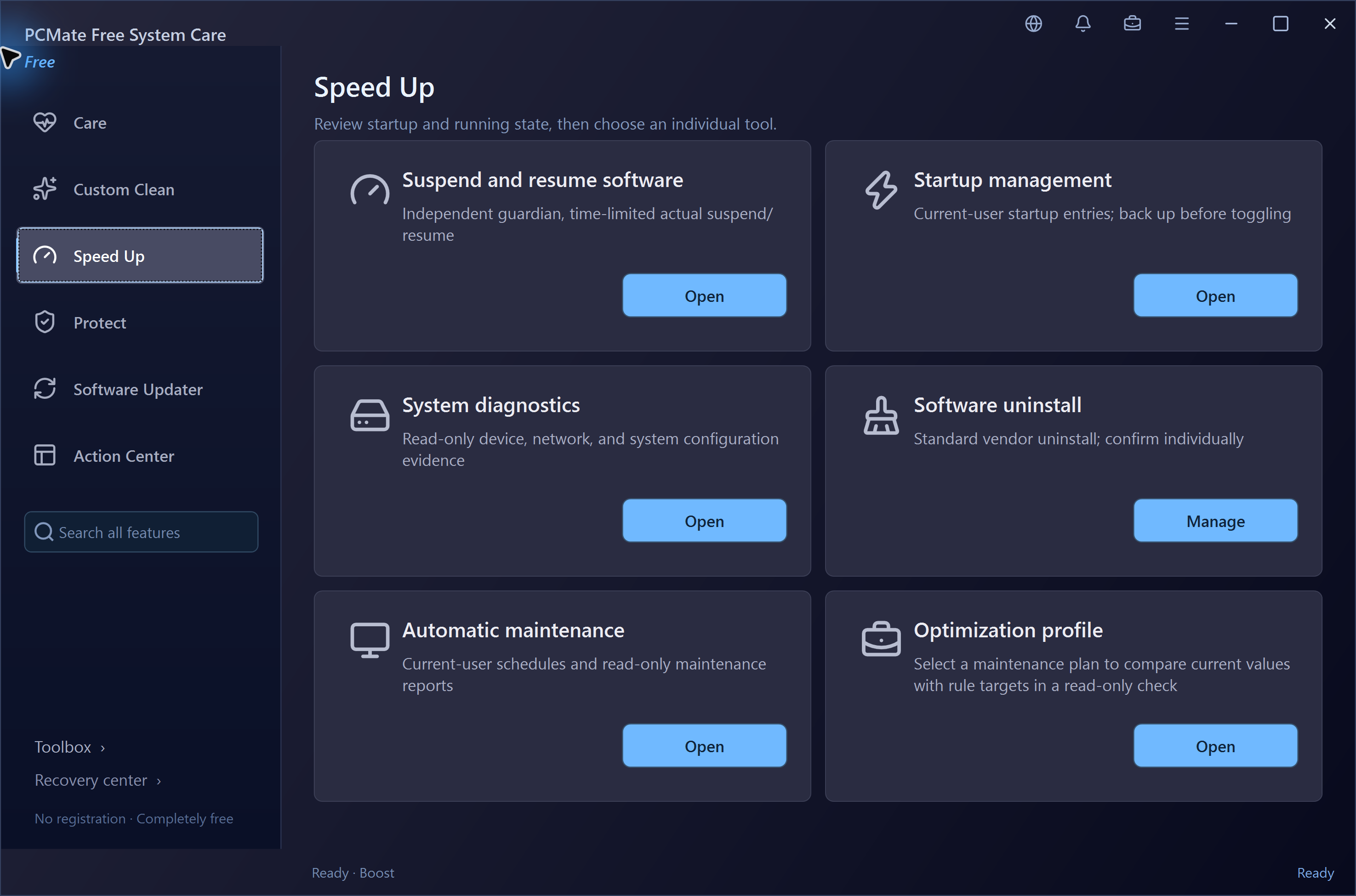
Pick one app that opens at sign-in
If you prefer to open a known app yourself, change only its startup entry. Keep entries needed for device functions, security or work unchanged while you confirm what they do.
Back up and disable an entry in PCMate
- Open Speed Up → Startup Manager and match the entry name and full command or executable path to the installed app.
- Select an eligible current-user Run or Startup folder entry. Use the backup-and-disable action and keep the saved record. Startup Manager only changes supported entries for the current user.
- At your next sign-in, check whether the app still opens on its own. Then start it manually to confirm that you can open it when you need it.
Use Windows Settings or Task Manager
For an app that Windows lists, open Settings → Apps → Startup and switch its toggle off. You can also open Task Manager, choose the Startup apps tab (Startup on some versions), select the app and choose Disable.
Restore automatic launch if you need it again
In PCMate, use the restore action on the saved Startup Manager record. If the app has been updated since you disabled it, read any conflict message and recheck the current executable path. For changes made in Windows, return to the same list and switch the entry back on.