 PCMate Free File Recovery
Outcome: any usable recovered document is saved separately, opened and checked before it returns to your normal document folders.
Before you begin
- Identify the disk that held the missing document and avoid new downloads, installations or saved work on that device.
- Prepare another physical disk for output when recovering from an actual Windows drive; another partition is not sufficient.
- Write down the filename, likely file type and former folder while you still remember them.
1. Separate the missing-file location from the destination
Choose the source you intend to read and a recognizable output folder on the separate destination. Do not use the former document folder as the recovery destination. Reading an actual Windows drive requires administrative access.
If you already have an image of the source, you can select a local .img, .raw or .dd file instead. Note which source belongs to this attempt so the recovered material remains easy to identify.
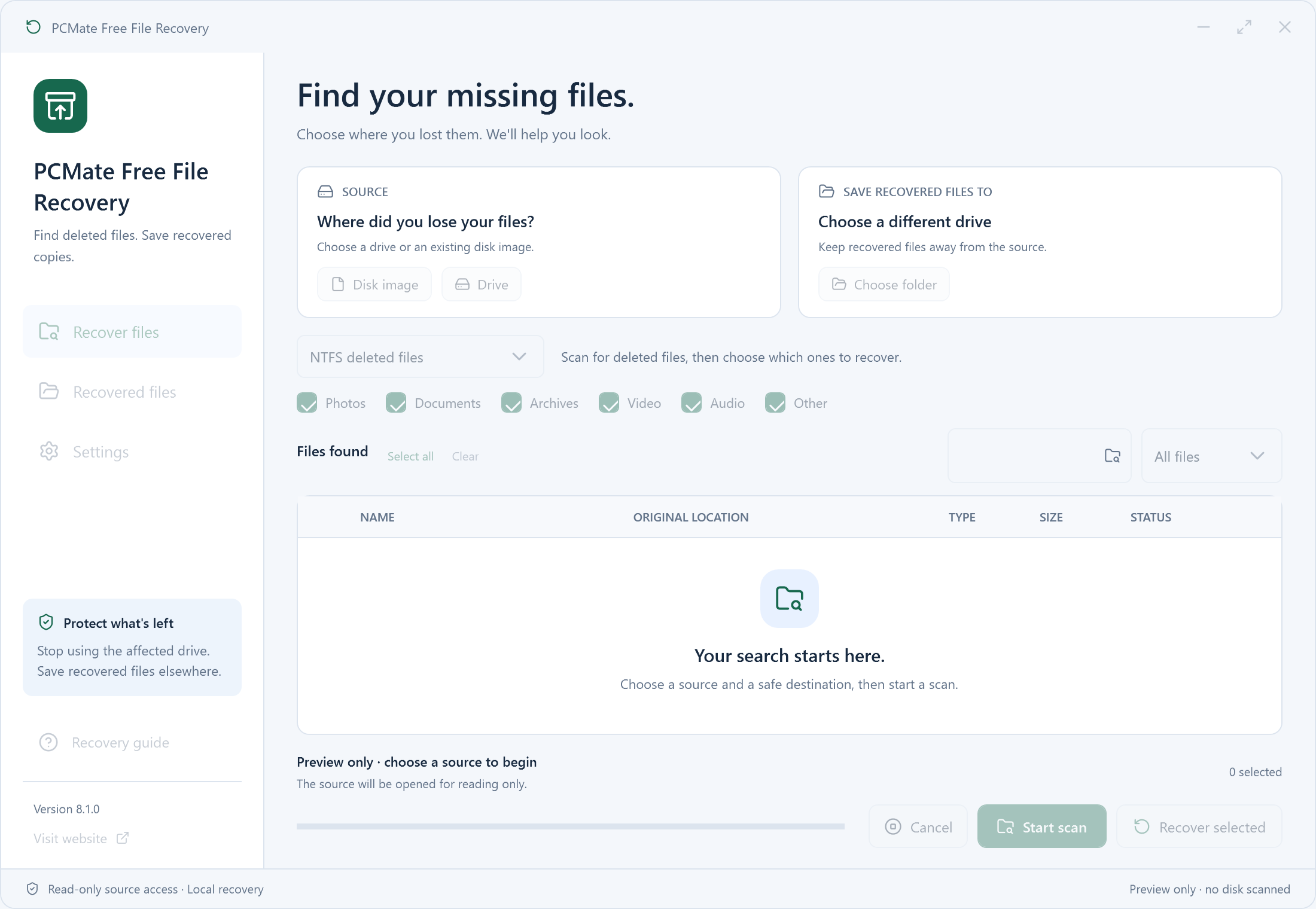
Find these controls in the real application
- Drive / Disk image
- Choose the affected volume with administrative access, or an existing local .img, .raw or .dd image.
- Start scan
- Start the selected mode after checking the output destination. Deep recovery writes matches while scanning.
- Recover selected
- In NTFS deleted-files mode, recover only the candidates you selected after the record scan.
- Recovered files / Open folder
- Inspect the session output and open its current output directory before checking recovered contents.
- Identify the affected physical disk or existing image.
- Choose a clearly named destination for this attempt.
- Avoid creating preparation files on the affected source.
Check before moving on: The source is identified and actual-drive output is on another physical disk.
Do not download, extract or install the recovery app onto the affected device during preparation.
2. Search the NTFS records for the document
When the document came from NTFS, inspect the record scan and filter using the remembered name or type. Look at surviving folder information where available to distinguish an intended document from an older item with a similar name.
Select the candidates you want to attempt. Keep the search tied to your missing document instead of assuming every recognizable record needs to be recovered. The next step is to test what the candidate actually contains.
- Narrow the list using the information you remember.
- Compare similar names with their available folder context.
- Select the relevant NTFS candidates before recovery.
Check before moving on: The selected NTFS candidates match the remembered document and available path context.
A recognized filename does not establish that its data survived; inspect the recovered contents next.
3. Open the saved copy and inspect its contents
Open the recovered copy with the application normally used for that document. Check the pages, text or other material that makes it useful to you. A retained filename is encouraging, but does not establish that all its data survived.
Keep useful results in the attempt folder until you know which copy is complete enough for your needs. Only then copy the chosen result into your normal working folder, keeping its recovery origin clear if several versions exist.
- Open the recovered document rather than relying on its filename.
- Check the content that matters to your task.
- Keep the verified copy separate from incomplete alternatives.
Check before moving on: The recovered copy opens and the pages or material you need are present.
Retain an incomplete copy separately rather than overwriting a better verified version.
4. Consider a content scan if no usable record remains
Deep recovery provides another route when the record search does not supply a useful result. It writes PhotoRec-based content matches during scanning, so select its destination before starting. Names and original folders may not be preserved.
Review deep output by contents. It can include files that were not deleted, and it cannot reconstruct data that has been overwritten or cleared by SSD TRIM. If you cancel, keep completed output for inspection; another scan starts a new attempt.
- Prepare the deep-scan destination before the search begins.
- Inspect likely results using their normal applications.
- Retain useful completed output if you stop the scan.
Check before moving on: Deep output is saved to the intended destination and useful completed files remain available for inspection.
Deep mode writes results during scanning, may lose names and folders, and does not resume at the old position after cancellation.
Check your result
- NTFS deleted-files mode presents candidate records before selective recovery. Surviving names or folders do not prove the file contents are intact.
- Deep recovery saves content matches during scanning and may lose original names and folder structure or include files that were not deleted.
- Cancel keeps completed output. A later scan starts from the beginning; this version does not resume a stopped scan.
Read-only source access does not stop Windows or other applications writing to a mounted drive. Avoid source writes, use another physical disk for actual-drive output, and check file contents before relying on a recovered copy. Overwritten or TRIM-cleared data cannot be reconstructed.
What if the recovered document opens but some pages are wrong?
Treat it as an incomplete result rather than overwriting a better copy. Check other selected candidates or an existing backup, and keep the source free of new writes while deciding on another attempt.
Where should I keep the document after checking it?
Keep a verified copy on storage you normally use for important work, with a suitable backup of your own. Finish the recovery review before reorganizing or writing new material to the affected disk.
Should I install the recovery tool on the disk that lost the document?
Avoid that write. Download, extract or install onto other storage and use a separate physical disk for output when reading an actual drive. Another partition on the affected disk is not sufficient.