 PCMate Free EXE Lock
Outcome: the chosen EXE is locked only when you want it to be, and your recovery information matches the final protected-file list.
Before you begin
- Choose an application you recognize on local NTFS storage, outside system locations and the lock manager folder.
- Have your manager password available and choose a place where you can retain its recovery kit.
- Save work in the selected application before closing it; an already-running instance is not ended by this lock.
1. Identify the actual program file
Start from the application you intend to keep closed, then locate the executable that opens it. A shortcut is not the same thing as its target file. Check the containing folder and filename before adding the EXE.
If the installation includes an updater or several helpers, do not select them merely because they share the application icon. Use a known executable and review the eligibility result in the manager.
- Read the complete local path before adding the selection.
- Close the target application after saving your work.
- Continue only when the selected file passes the eligibility check.
Check before moving on: The selected path is the eligible program file you intended, and the target application has been closed after saving work.
Use the executable target, not merely the shortcut or a similarly named helper.
2. Apply the lock and recognize its result
Apply the lock to your selected entry in PCMate. Try opening that exact executable from the same Windows account. The expected result is a Windows access-denied message, not a new password window inside the application.
If the application still appears open, check whether that window belonged to an instance already running before the lock. Also verify that your launch action used the selected path rather than a different copy.
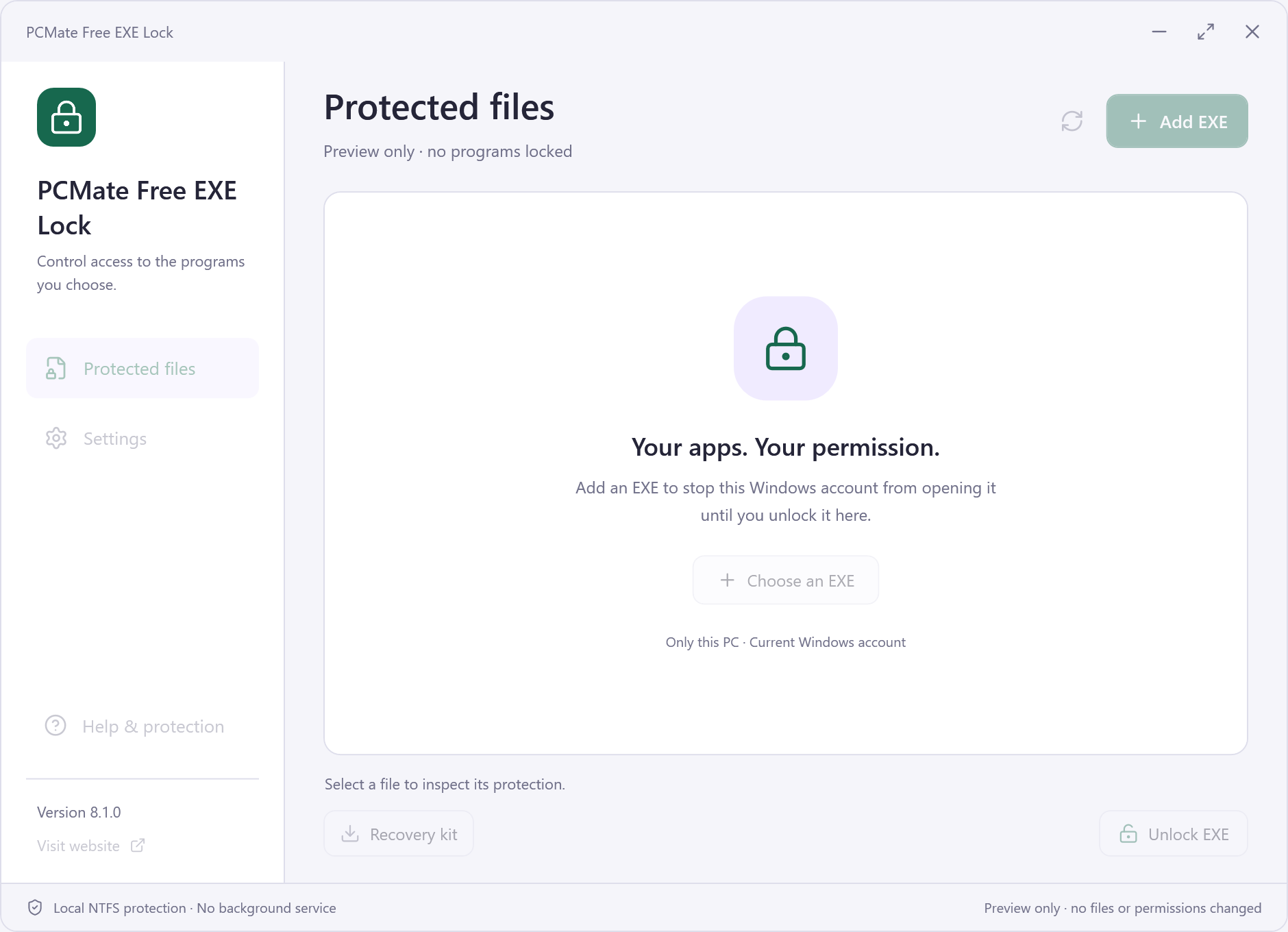
Find these controls in the real application
- Add EXE
- Choose the actual executable, not its shortcut. The eligibility checks apply to the selected local NTFS file.
- Unlock EXE
- Restore access to the selected protected file after authenticating. Unlocking does not automatically launch it.
- Locate & unlock
- When this contextual control is available, locate the same original file after a rename or move and review the recovery action. Another copy is outside the old lock.
- Recovery kit
- Export a current recovery record after a protected-list or password change, and retain the password used for that export.
- Apply the operation to the intended protected-list entry.
- Test the exact path from the account that applied the lock.
- Compare the path and running-instance status if the result is unexpected.
Check before moving on: A new launch of that exact file from the current account is refused by Windows.
If an old window remains open, close it after saving work before testing again; the lock does not terminate it.
3. Reopen the program through the manager
Return to PCMate and authenticate with the manager password. Unlock the selected executable, then launch it from its original location. The original program bytes have not been replaced, so this test should use the same file you chose at the beginning.
Keep this first task small enough that you can understand the result. A successful unlock test is useful before you decide to maintain several protected entries over time.
- Unlock the chosen entry using the password-protected manager.
- Open the original executable to check restored access.
- Decide whether the file should remain unlocked or be locked again.
Check before moving on: The manager reports the unlock and you can launch the same original executable yourself.
Unlocking restores access; it does not automatically open the program.
4. Save a record of the final list
After settling the final protected-file list, export a current recovery kit. Retain the password used for this export and keep a usable manager copy available. Label your saved information so that you can distinguish it from an earlier export.
If you later remove the manager, first unlock every protected file and verify each original location. Do not discard the recovery information while those checks are still unfinished.
- Export after the final addition or removal in this task.
- Keep the kit and its matching password accessible.
- Check all unlocks before uninstalling or deleting the manager folder.
Check before moving on: The final protected list and latest recovery export describe the same set of entries.
Keep the export-time password with your recovery plan; an old export cannot cover later additions.
Check your result
- A fresh launch of the selected locked EXE from the current Windows account is refused by Windows. No application-level password dialog is added to that EXE.
- A successful manager unlock restores access to that file; you then launch it yourself.
- Export a fresh recovery kit after additions, removals or password changes, and retain the password used for that export.
Local current-account NTFS launch restrictions preserve the selected EXE bytes and signature. Existing running instances, another copy, other Windows accounts and administrator permission changes are outside this lock.
The filename changed after an application update. Should I assume the old lock covers it?
No. A lock concerns the selected executable path and current account. Inspect the actual program file and the protected list before making a new locking decision; do not infer coverage for another copy.
Can I recover a lock without the export password?
The recovery kit requires the password used when it was exported. It is not a forgotten-password bypass, so retaining that password is part of completing this task.
How do I make the first check easy to recognize?
Use one eligible, familiar executable and complete a lock-and-unlock check on that exact path. A continuing old window is not a new launch test; save work and close it before testing.