How to Unlock a Program Before Updating It
Temporarily unlock the executable you own so a legitimate update can replace it, then check that the updated program opens.
Download PCMate Free EXE LockWindows installer · Installation guide
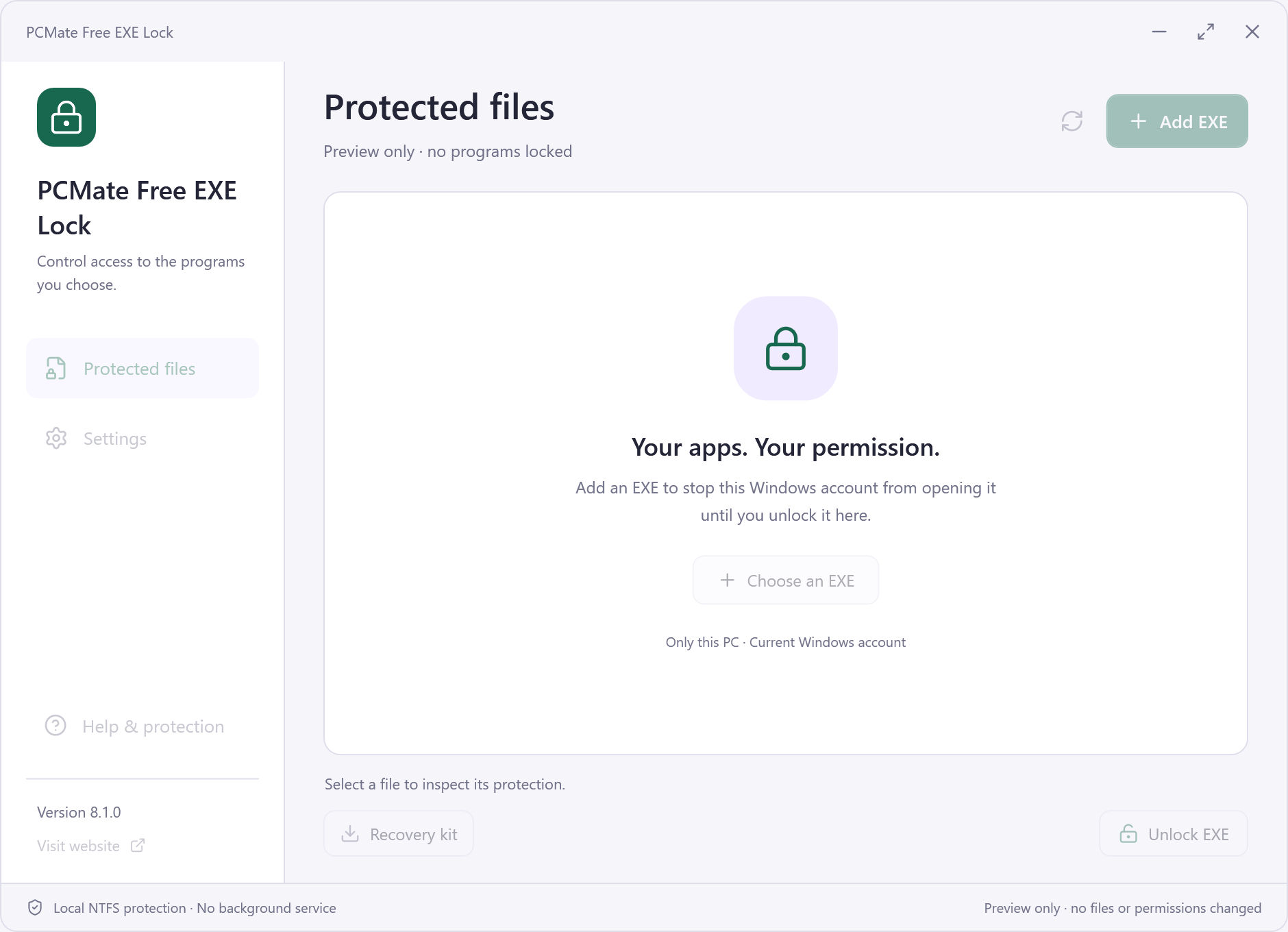
Before replacing a password-protected EXE
Your own utility is password-protected with PCMate and you have an installer from its publisher for the new version.
Unlock the old file and install the update
- Close the program and open PCMate Free EXE Lock. Identify the exact executable by its location and unlock it using the password you set.
- Try a fresh launch. When the unlocked copy opens, close it again and run the software publisher’s update.
- Find the installed executable after the update, since its location can change. Open it once and apply a new lock if you still want one.
Test the new lock before relying on it
Test one fresh launch after locking the updated file and one successful launch after unlocking it. Keep the installer and the lock password available.