Where to Save Recovered Files After a Windows Drive Scan
Choose a separate physical drive for recovered files so saving them does not compete with the data you are trying to rescue.
Download PCMate Free File RecoveryWindows installer · Installation guide
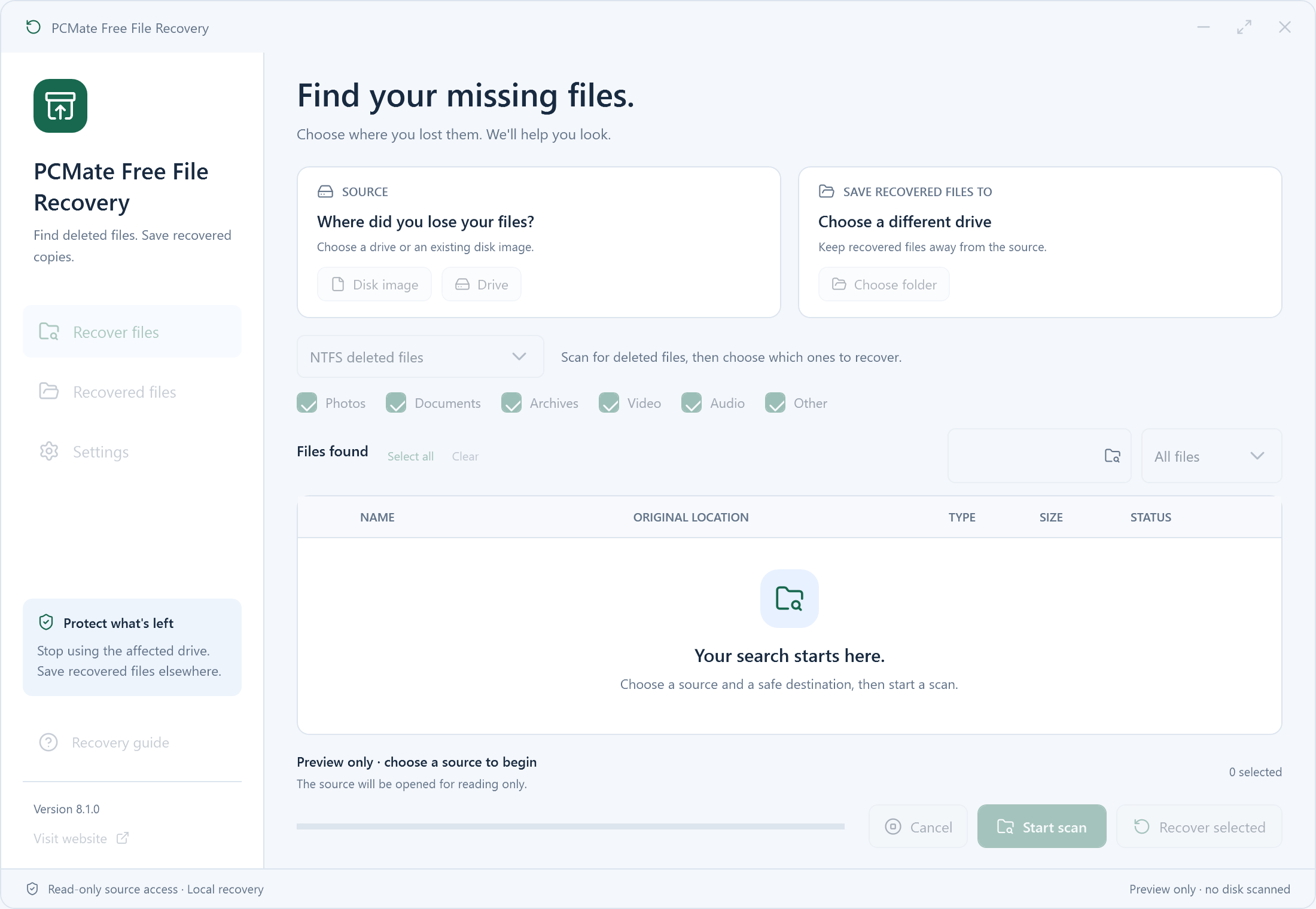
Use a second drive for the recovered copy
A file is missing from a removable drive. You have a second USB drive with space to hold a recovered copy.
Scan the source and save to the second drive
- Identify the affected drive by its label and drive letter in File Explorer. Keep using it to a minimum and prepare a healthy second physical drive.
- Open PCMate Free File Recovery from a different drive where possible, then scan the affected source. Review the matching names and previews where available.
- Choose a folder on the second drive for the output. Open the recovered files from that destination and confirm that their contents are usable.
Two drive letters can share one disk
Two letters can be partitions on the same drive. If you are unsure which volume is which, use an external destination you can identify by label and available space.