How to Find the Right EXE Behind a Windows Shortcut
Follow a shortcut to the desktop program it launches before choosing what to password-protect.
Download PCMate Free EXE LockWindows installer · Installation guide
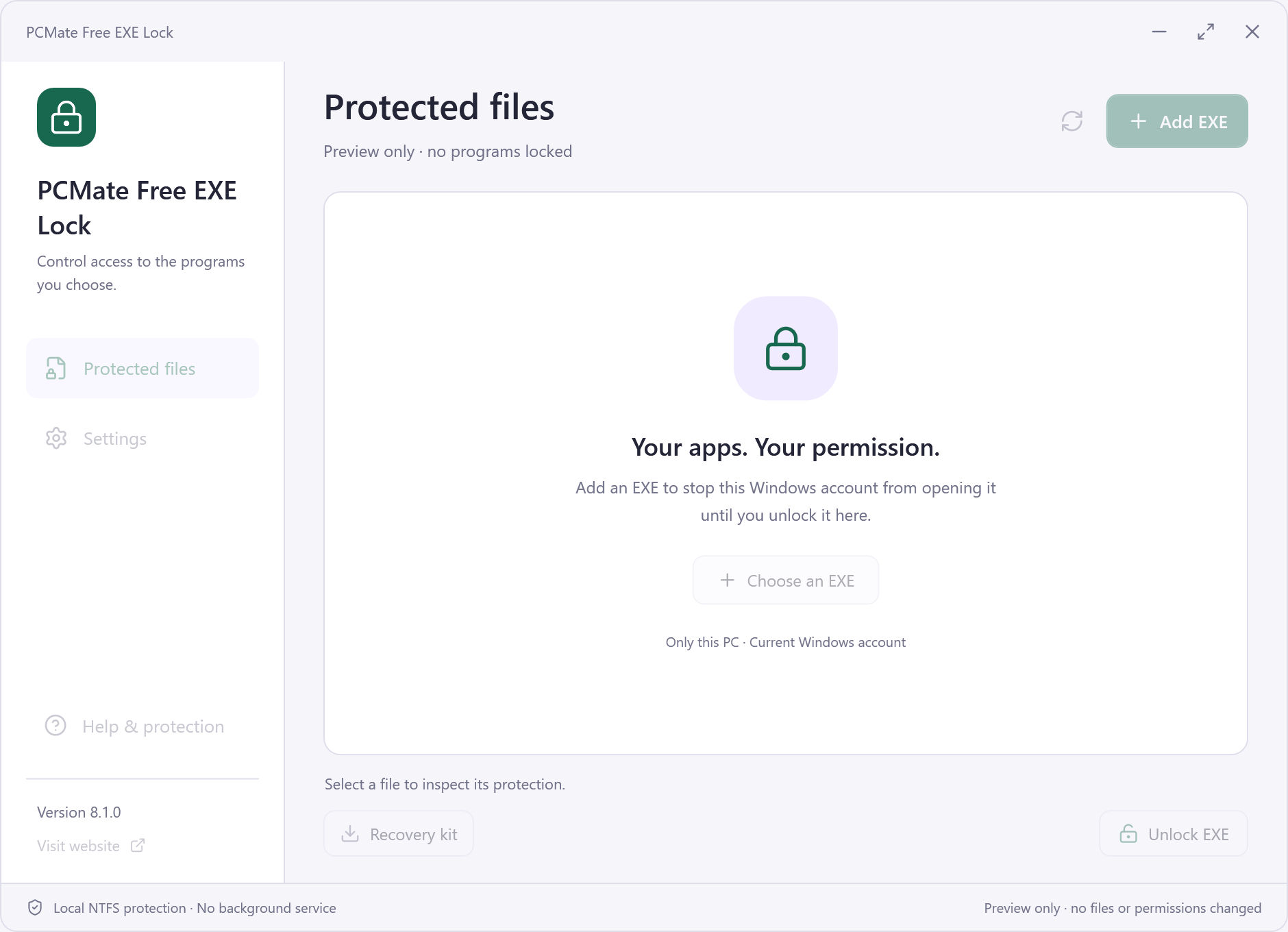
When the updater and app share a name
A desktop shortcut and a folder both show the same app name. The folder contains an updater and the program you use every day.
Follow the shortcut to its executable
- Right-click the ordinary desktop shortcut, open Properties and read the Target on the Shortcut tab. Note the .exe path separately from any parameters shown after it.
- Open the target’s file location and compare the filename with what the shortcut launches. A publisher-installed launcher can lead to another executable, so start by testing the main app in isolation.
- Select the verified, eligible desktop executable in PCMate Free EXE Lock. Test closing the app and opening it again with the same shortcut, then verify you can unlock it.
Leave shared launchers alone until verified
If you find a Store shortcut or a launcher for several apps, leave it alone until you know what it controls. Avoid Windows components, security tools and shared executables.